01 Jul, 2020
How To Integrate Dynamics 365 With Microsoft Teams
Posted on 01 Jul, 2020 by Admin, Posted in
Microsoft Teams
Dynamics 365
 Blogs
Blogs
Introduction:
- In this blog we will see step by step process on how to Integrate Dynamics 365 with Microsoft Teams and we will also go through how to setup and see your Records/Views on any Teams channel.
- Records/Views can be added to a teams channel in two ways – From Dynamics or From Microsoft teams directly.
- In this blog, I will be showing how to add records/views from Dynamics which has become available as a part of Enhanced Microsoft Teams Integration, if you want to see how to add from Teams which is available as part of Basic Microsoft Teams Integration click on the link at the end of this blog.
Steps:
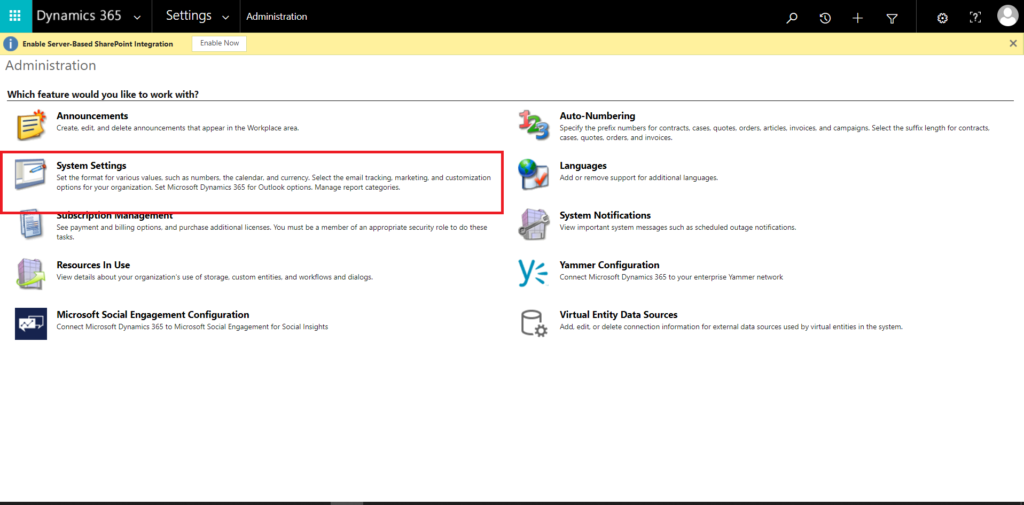
- Go to Advanced Settings –> Administration –> System Settings.
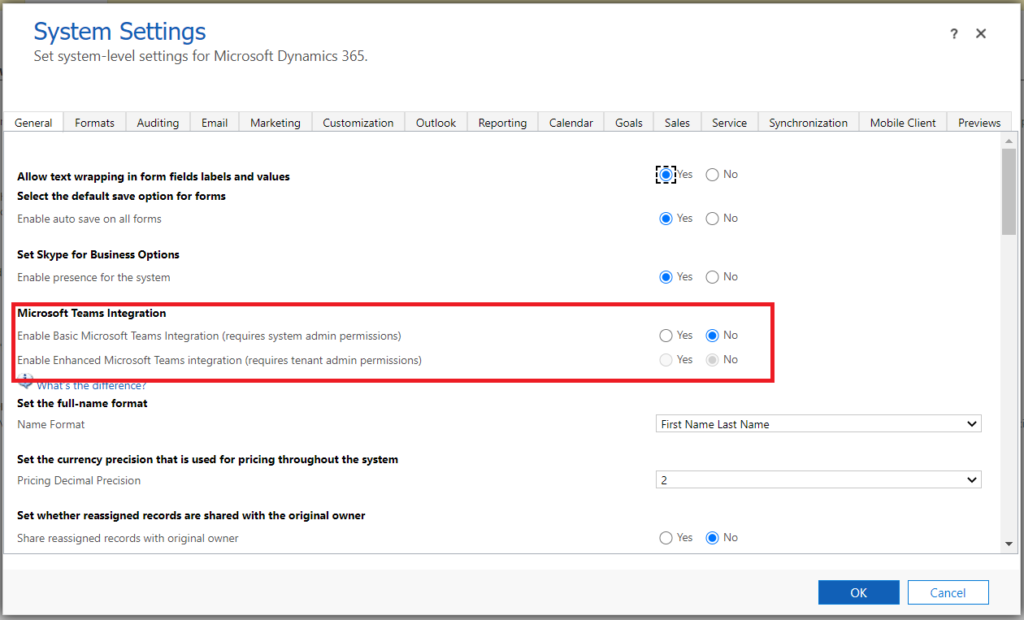
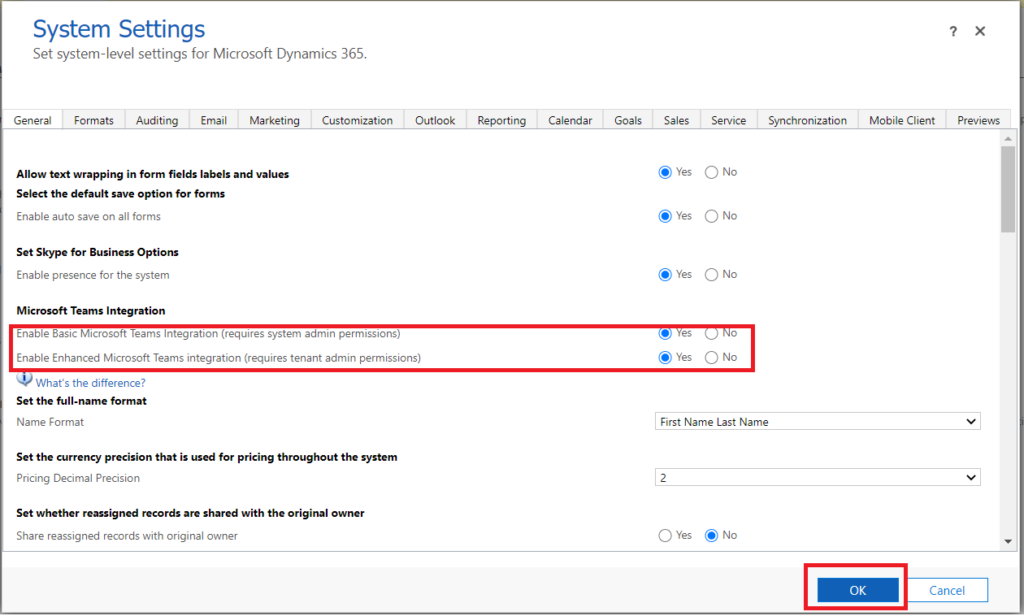
- From the Microsoft Teams Integration section, select Yes on Basic Microsoft Teams Integration
- A pop-up will appear click OK.
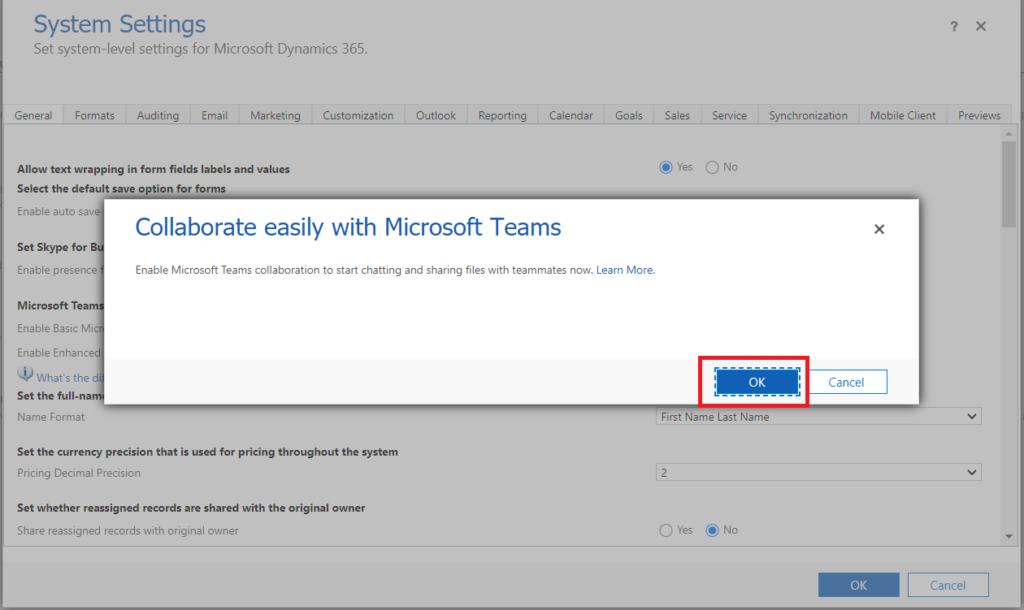
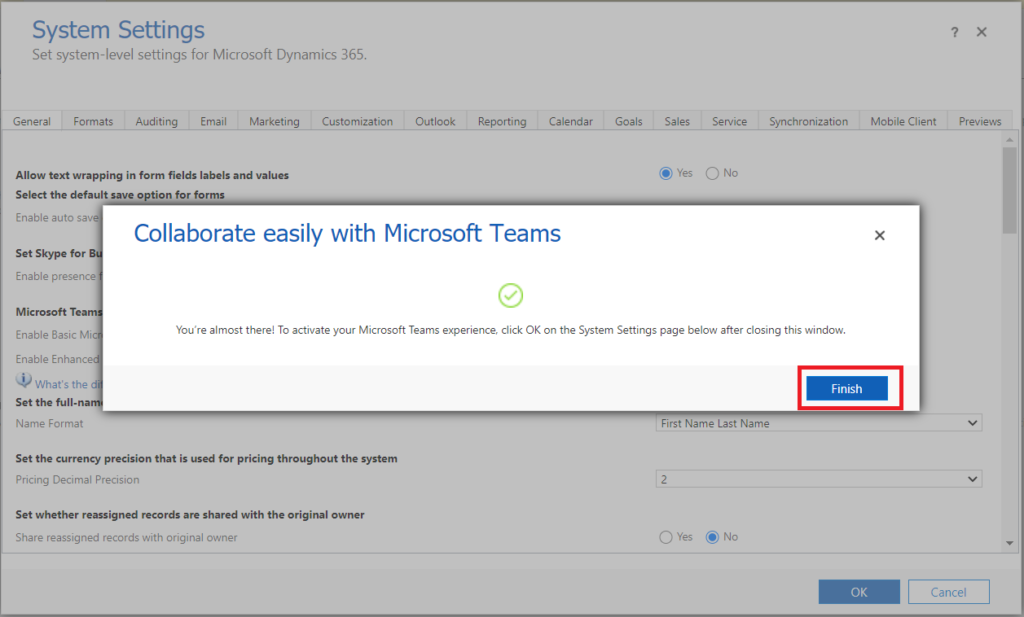
- Wait for it to be completed and click Finish.
Note: You need to click on OK on system settings page after closing the window to activate it.
- Now, enable the Enhanced Integration , this will let you connect with your Microsoft Teams in a much more efficient way.
Note: Make sure you are an tenant admin or have tenant admin permissions, only then you can enable this option.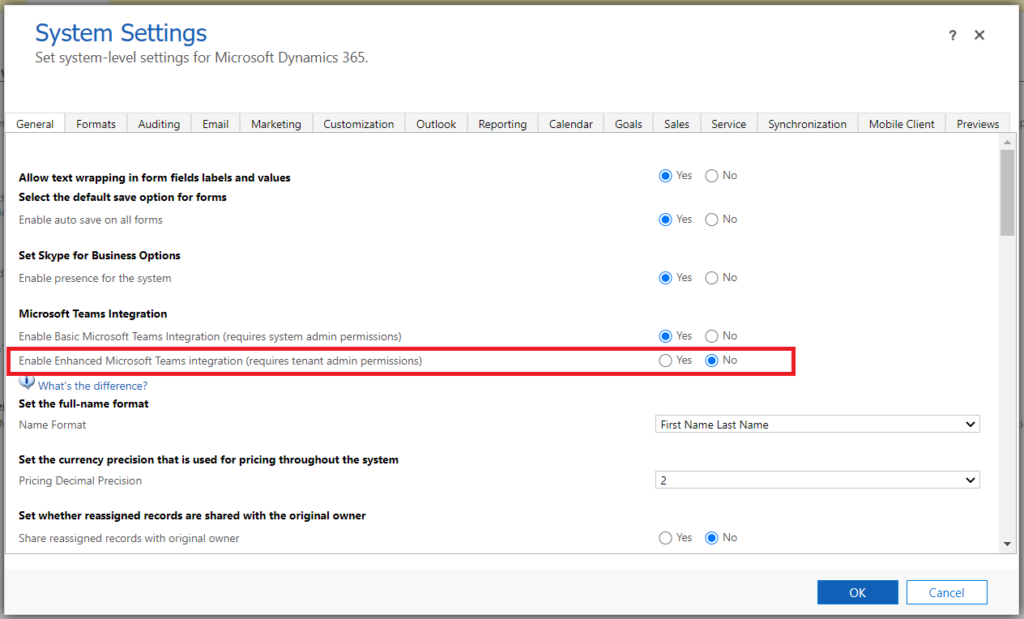
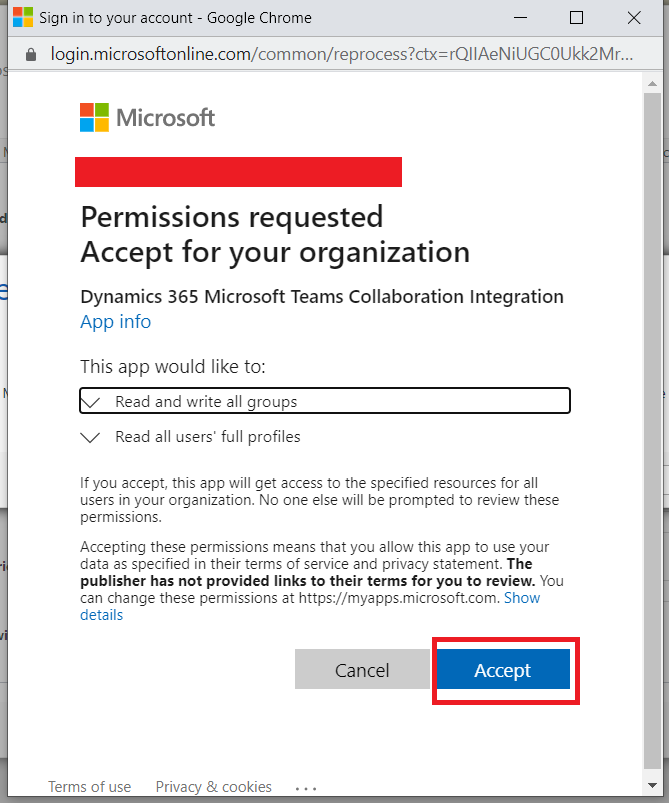
- Two pop-up windows will appear, click on OK on the first one and you will need to sign in first and then hit accept for the second pop-up.
Note: Sometimes the second pop-up is blocked by the browser so make sure you you remove any pop-up blockers from the browser and try again.
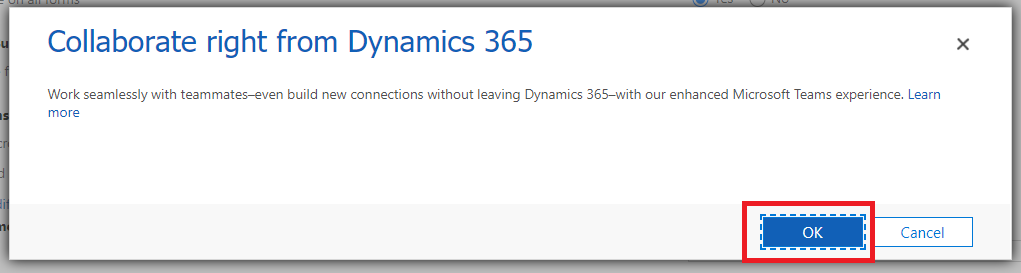
- Wait for it to complete and then make sure you click OK on the system settings to apply the changes.
- Now go to the record you want to add to Teams, and click on Collaborate from the ribbon. If you do not see the button, click on the ellipses like shown below and then click on collaborate.
Note: You can do the same thing for a view as well to add the view to the channel.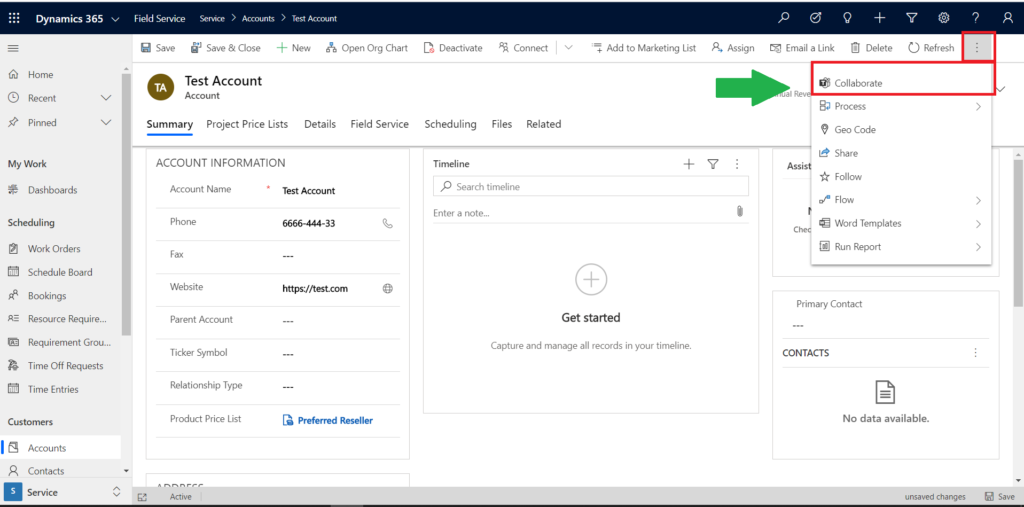
- A pop-up will appear, click on Get Started.
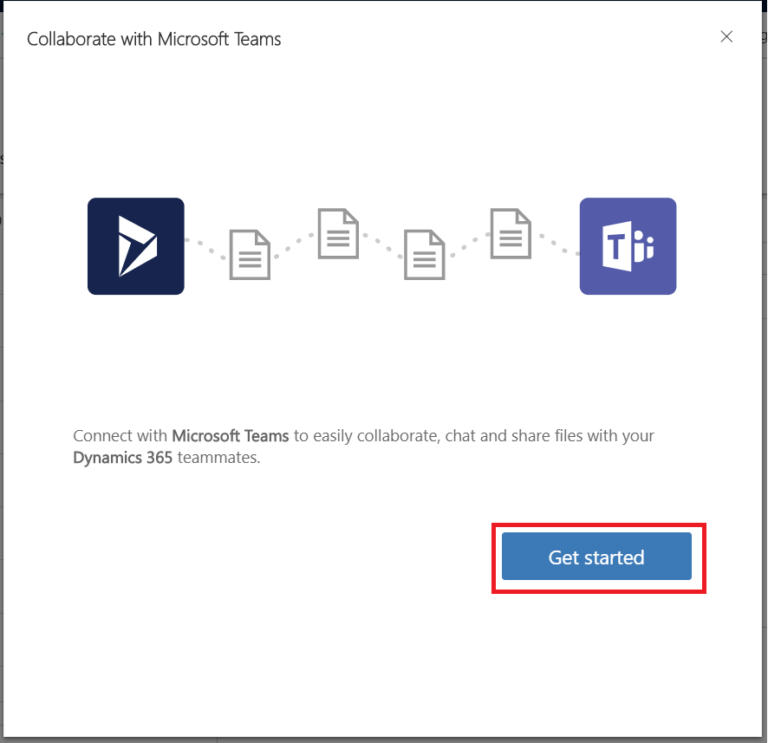
- You can then select an existing team to add your record to or create a new team right here.
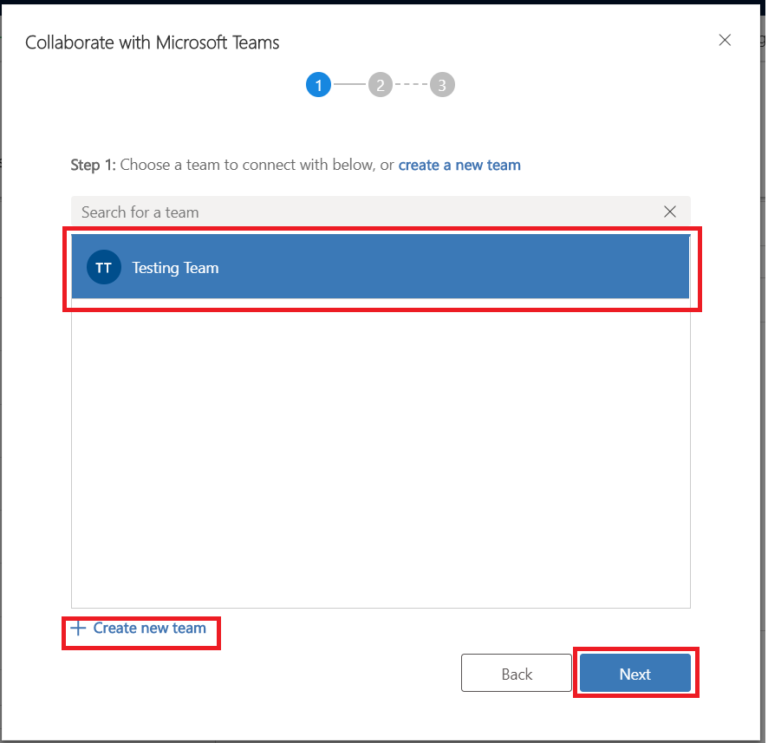
- Similarly, from the team you just selected, you need to select an existing channel to add the record to, or create a new one.
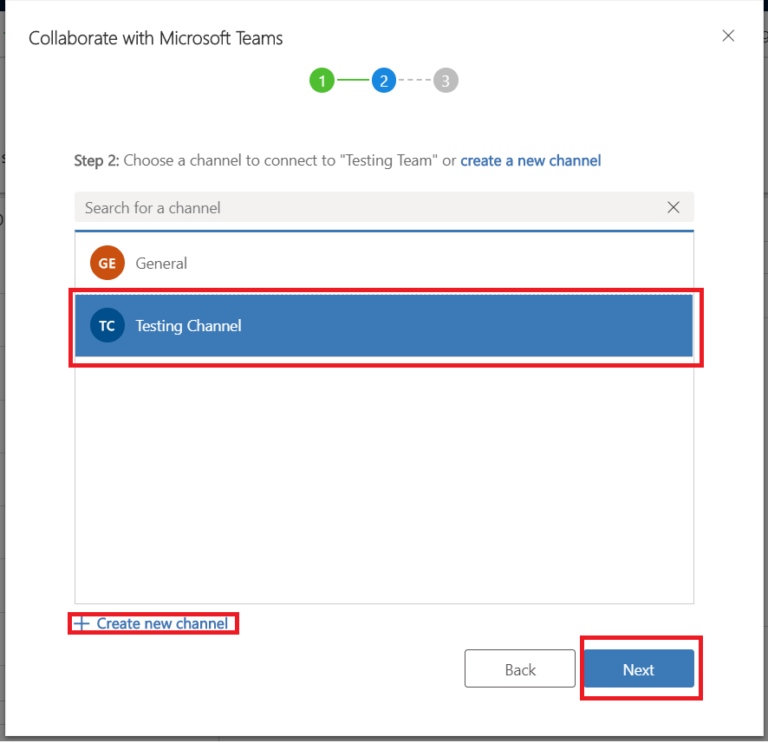
- In the next window, you will be asked to add any members to the channel to view the record, select according to your need and click Finish.
- You will then see an alert asking you if you want to open teams. You can open from there or go to your teams directly.
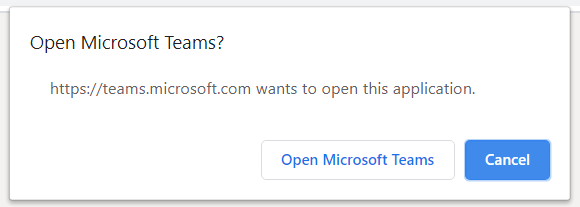
- You can now see the record you just added as a tab in the channel.
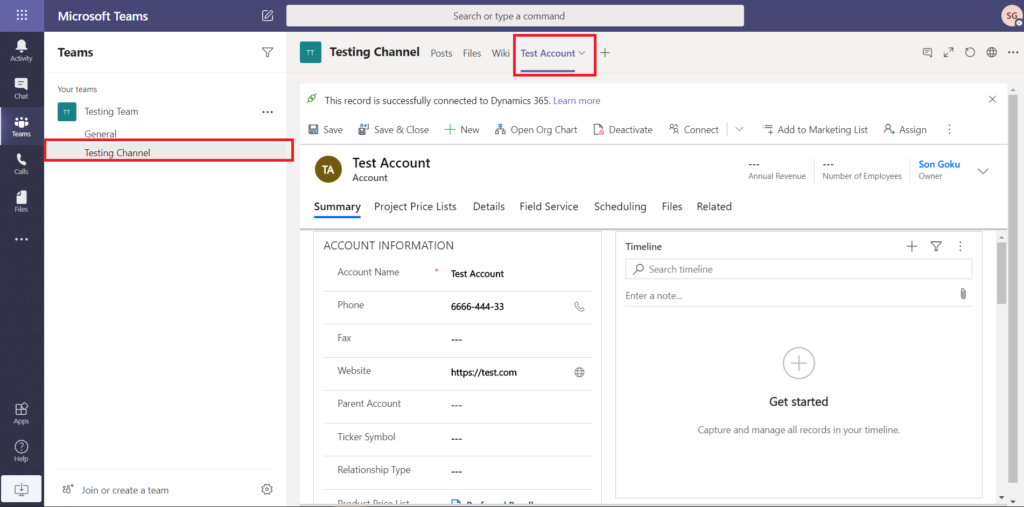
- That’s it you have successfully integrated Dynamics 365 with Microsoft Teams.
If you want to see How to Add Dynamics Record/View from Microsoft Teams click here.