
01 Oct, 2026
Posted on 01 Oct, 2026 by Bharathi Siripuram, Posted in Microsoft Power Platform Power Automate Power Platform Dynamics 365
 Blogs
Blogs
Introduction
Most teams building Power Automate flows eventually land on the same pattern: wrap your business logic in a Scope, rename it "Try," and add a second Scope called "Catch" that only runs if something in Try goes wrong. It's a good instinct — it mirrors how try-catch works in real code, and it stops one broken action from silently taking down an entire flow.
But here's where most flows quietly fall short: the Catch scope runs, sure - but does it actually tell you which step failed, and why? Without that, you're left staring at a failed run with no real starting point, and worse, if nothing inside Catch explicitly marks the run as failed, Power Automate's run history will happily show a green "Succeeded" checkmark - even though something clearly broke.
This post walks through exactly how to make your Catch scope actually useful: pulling out the failed step's name and error message, saving that detail somewhere permanent (an Error Log table), and importantly making sure the flow's run history reflects reality.
Pre-requisites:
Step 1: Filter the Try Block's Results
Inside your Catch scope, add a Filter array action. This is what lets you look back into everything that happened inside 'Try' and pull out only the steps that failed.
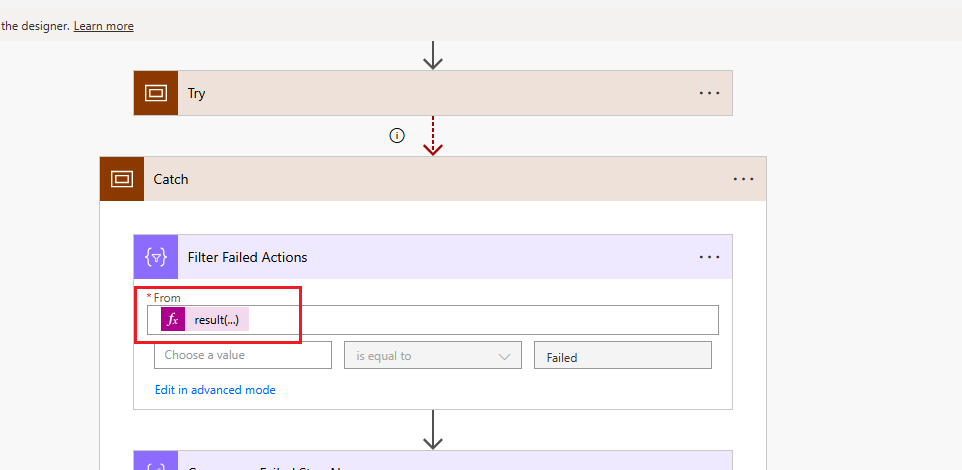
Step 2: Set the Condition to Only Keep Failed Steps
Now tell the filter what "failed" actually means.
item()?['status'] Failed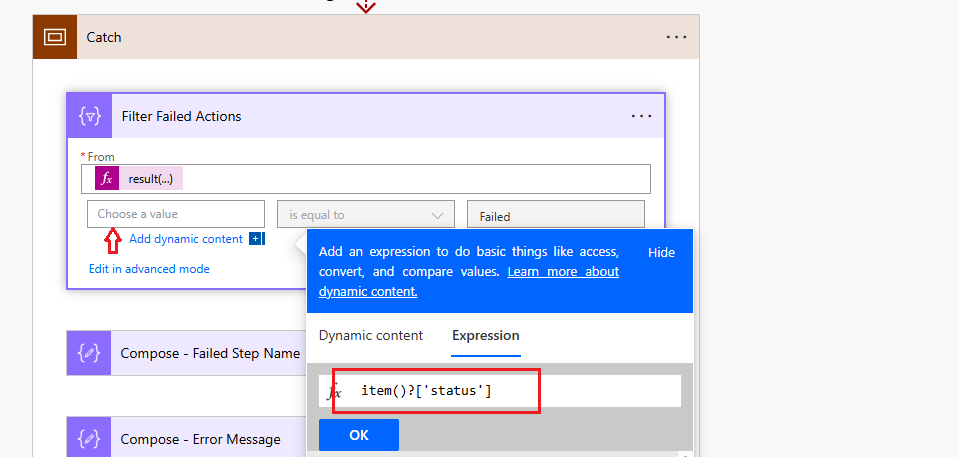
Step 3: Capture the Failed Step Name and Error Message
With the filtered results ready, add four Compose actions to pull out the two things you actually care about — which step broke, and what it said.
first(body('Filter_Failed_Actions'))?['name']Compose 2 - this one captures the error message, with fallbacks in case the usual location is empty:
coalesce(first(body('Filter_Failed_Actions'))?['error']?['message'], first(body('Filter_Failed_Actions'))?['outputs']?['body']?['error']?['message'], 'Unknown error')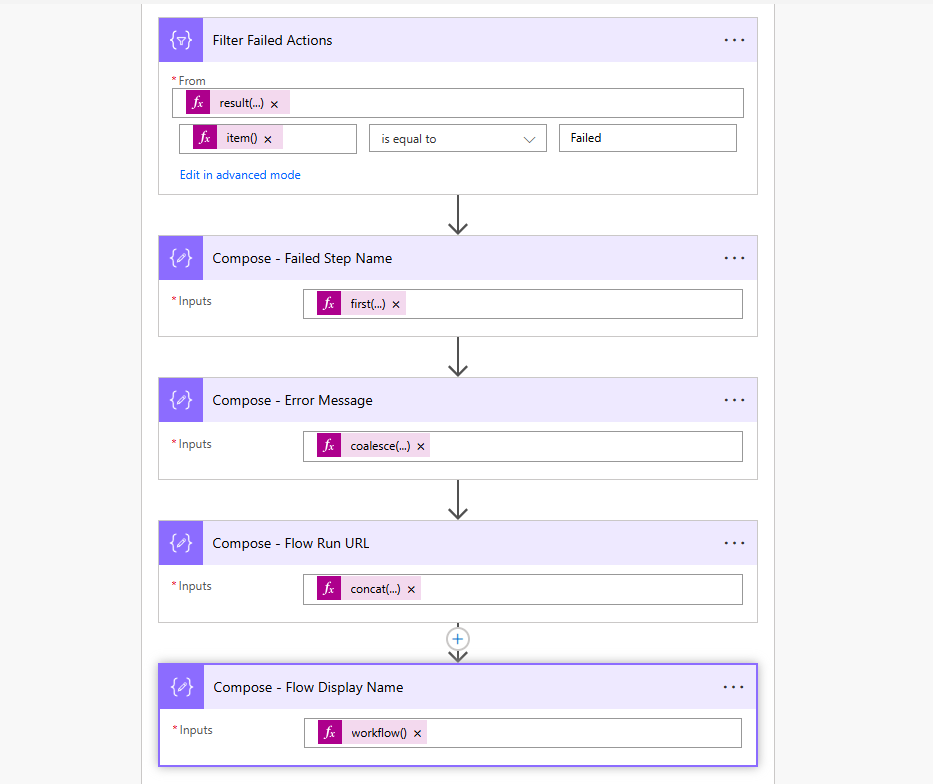
Step 4: Log the Error
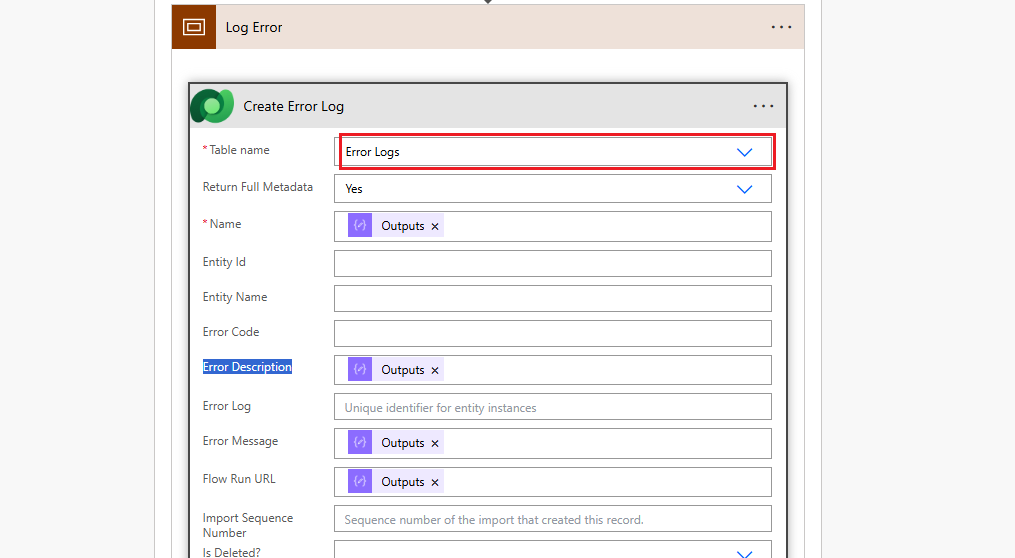
This is the part that turns a failed run into something you can actually act on. Add a Scope, and inside it, create a new record in your Error Log table and map the columns (Dataverse in this example — a SharePoint list works the same way).
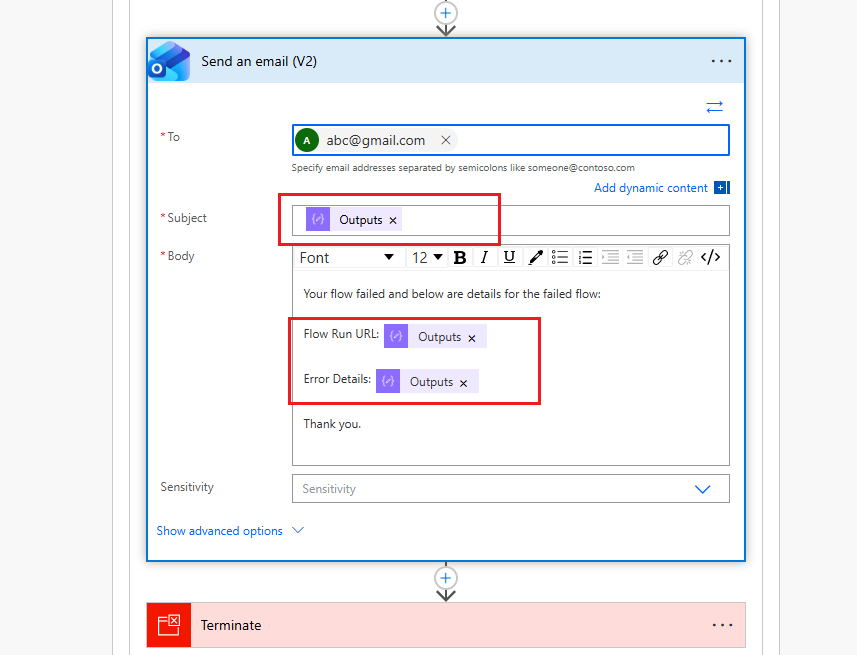
Step 5: Send an Email Notification directly, if you do not want to create Error Log table.
An Error Log table isn't the only option. If you'd rather be notified immediately instead of (or alongside) logging to a table, you can send an email using the exact same values captured in Step 3 — just drop the same Compose outputs and expressions into the email body instead of table fields.
Step 6: Mark the Flow as Actually Failed
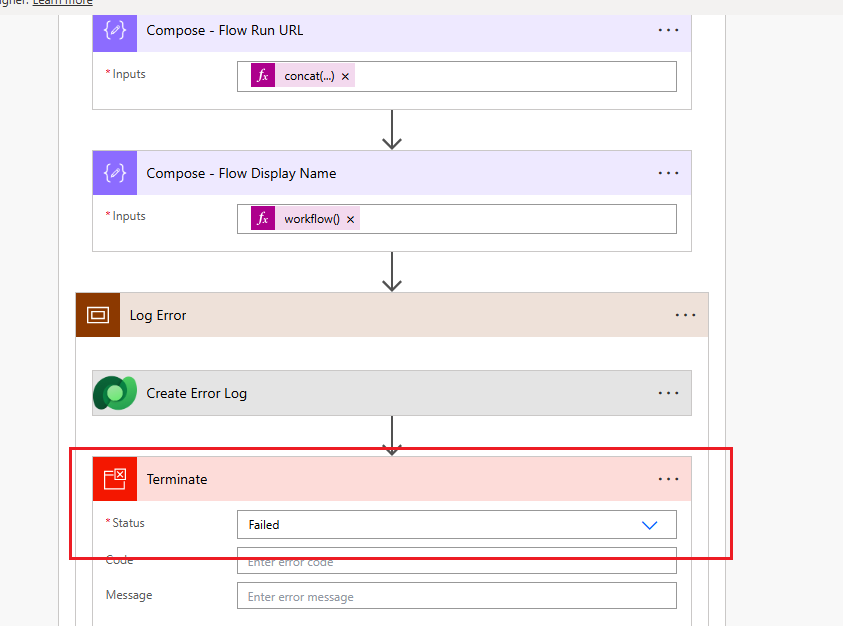
This last step is easy to skip — but skipping it quietly undoes everything you just built. Add a Terminate action at the very end of your Catch scope, and set its status to Failed, with the error message included.
Without this step, your error gets logged (or emailed) correctly, but the flow's run history will still show Succeeded - meaning nobody browsing past runs would ever know this run actually failed. The Terminate action is what makes the failure visible where it counts.
Common Mistakes
 Typing values directly instead of switching to the Expression tab — expressions like result('Try') or item()?['status'] won't resolve correctly if left in the plain value box.
Skipping the coalesce() fallback on the error message — different action types surface their error in different places, so a single hardcoded path can come back empty.
Not configuring "Run after" on the Catch scope — without setting it to run on Failed/Timed out, Catch simply won't trigger when Try breaks.
Conclusion
A Try-Catch pattern only works if the Catch block actually does something useful. By pulling out the failed step's name and error message, and saving them to an Error Log (or sending them in an email), you turn a mysterious failed run into something you can fix in seconds. And don't skip the Terminate step - without it, your flow can fail quietly while still showing "Succeeded" in the run history.
Hope you find this blog helpful .
.
Comment
Introduction Custom Pages provide a modern way to edit records in Dynamics 365. A common approach is to open a…
READ MORE
How to Dynamically Switch Business Process Flow When Changing Forms in Dynamics 365 Introduction Microsoft Dynamics 365 provides powerful customization…
READ MORE
How to Create a Flyout Button with Multiple Actions on a Form in Dynamics 365 Introduction In model-driven apps, command…
READ MORE