
23 Sep, 2026
Posted on 23 Sep, 2026 by Rushikesh Autade, Posted in Microsoft 365 Power Platform
 Blogs
Blogs
Microsoft Dynamics 365 provides powerful customization capabilities through model-driven apps, Business Process Flows (BPFs), and TypeScript.
A Business Process Flow helps users follow a predefined sequence of business stages. In some applications, different forms of the same table may require different business processes.
For example, a Customer table can have multiple forms, such as a Customer Onboarding Form and a Loan Application Form. Each form can use a different Business Process Flow.
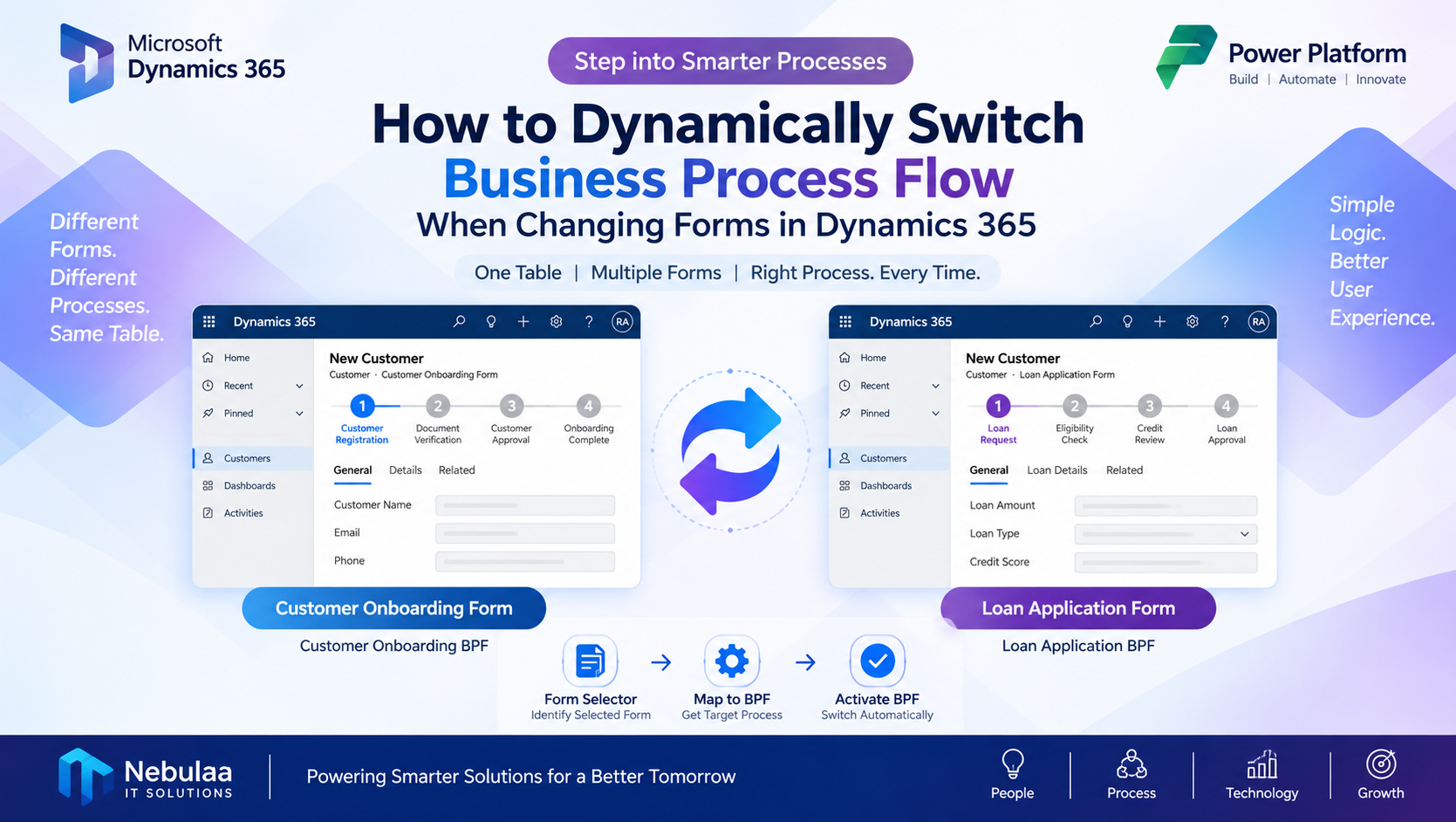
In this blog, we will learn how to dynamically switch the Business Process Flow when changing forms in Dynamics 365 using TypeScript.
In this example, we are using a Customer table in a Power Apps model-driven app.
The Customer table contains two forms and two Business Process Flows.
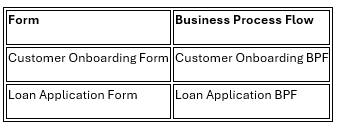
When the user opens the Customer Onboarding Form, the Customer Onboarding BPF should be active.
When the user changes to the Loan Application Form, the Loan Application BPF should be activated automatically.
This helps users follow the correct business process based on the selected form.
To switch the BPF based on the selected form, we need the Form ID and BPF ID.
Open the Customer Onboarding Form in Power Apps.
The Form ID can be found in the browser URL.
.png)
Example:
2cb555ff-cc4e-4acc-b24c-4cecdb74df54
This ID identifies the Customer Onboarding Form.
Similarly get the form Id of another form.
Open the required Business Process Flow in the process designer.
The BPF ID can be found in the browser URL.
.png)
Example:
D2585D2A-56B2-F111-AAAC-7CED8DAF442B
This ID identifies the Loan Application BPF.
Similarly get the BPF Id of another BPF.
To follow a maintainable coding approach, store the Form IDs and BPF IDs in the Model file.
This allows the Form file to use the identifiers from a centralized location.
namespace NISL {
    export namespace Model {
        export namespace Customer {

            export const enum Properties {
                entityLogicalName = "nisl_customer",
                entityId = "nisl_customerid",
            }

            export const enum Attribute {
                coursename = "nisl_slot_coursename",
                coursefee = "nisl_money_coursefee"
            }

            export const enum Forms {
                customerOnboarding ="CUSTOMER_ONBOARDING_FORM_ID",
                loanApplication ="LOAN_APPLICATION_FORM_ID"
            }

            export const enum BusinessProcessFlows {
                customerOnboarding ="CUSTOMER_ONBOARDING_BPF_ID",
                loanApplication ="LOAN_APPLICATION_BPF_ID"
            }
        }
    }
}
Replace the placeholder values with the actual Form IDs and BPF IDs from your environment.
Create a CustomerForm.ts file to handle the form load event and BPF switching logic.
The logic retrieves the current form ID, identifies the corresponding BPF, and activates it.
///

namespace NISL {
    export namespace CustomerForm {
        export function onLoad(executionContext: Xrm.Events.LoadEventContext): void
{
            if (executionContext === null ||executionContext === undefined)
            {
                return;
            }

            switchBusinessProcessFlow(executionContext);
        }

        function switchBusinessProcessFlow(executionContext: Xrm.Events.EventContext): void
            {
            if (executionContext === null ||executionContext === undefined)
            {
                return;
            }
            let formContext =executionContext.getFormContext();
            let currentForm =formContext.ui.formSelector.getCurrentItem();
            if (currentForm === null ||currentForm === undefined)
            {
                return;
            }

            let currentFormId =currentForm.getId().toLowerCase();
            let targetBpfId: string | null = null;
            switch (currentFormId) {

                case NISL.Model.Customer.Forms.customerOnboarding.toLowerCase():

                    targetBpfId =NISL.Model.Customer.BusinessProcessFlows.customerOnboarding;

                    break;

                case NISL.Model.Customer.Forms.loanApplication.toLowerCase():

                    targetBpfId =NISL.Model.Customer.BusinessProcessFlows.loanApplication;
                    break;

                default:

                    return;
            }

            if (targetBpfId === null ||targetBpfId === undefined)
            {
                return;
            }

            let activeProcess =formContext.data.process.getActiveProcess();
            if (
                activeProcess !== null &&
                activeProcess !== undefined &&
                activeProcess.getId().toLowerCase() ===
                targetBpfId.toLowerCase()
            ) {
                return;
            }

            formContext.data.process.setActiveProcess(targetBpfId,function (result)
            {

                    if (result === "success") {
                    console.log("Business Process Flow switched successfully.");
                    }
                    else {
                     console.error("Failed to switch Business Process Flow."
                        );

                    }

                }
            );

        }

    }
}
The onLoad function is the entry point of the form logic.
export function onLoad(
    executionContext: Xrm.Events.LoadEventContext
): void {

    if (
        executionContext === null ||
        executionContext === undefined
    ) {
        return;
    }

    switchBusinessProcessFlow(executionContext);
}
When the form loads, the function validates the execution context and calls the BPF switching function.
The formSelector.getCurrentItem() method retrieves the currently selected form.
let currentForm =
    formContext.ui.formSelector.getCurrentItem();
The Form ID is then retrieved:
let currentFormId =
    currentForm.getId().toLowerCase();
This ID is used to identify which BPF should be activated.
The switch statement compares the current Form ID with the IDs stored in the Model file.
If the Customer Onboarding Form is selected, the Customer Onboarding BPF ID is assigned.
If the Loan Application Form is selected, the Loan Application BPF ID is assigned.
Before switching, the code checks whether the required BPF is already active.
let activeProcess =
    formContext.data.process.getActiveProcess();
If the active process ID matches the target BPF ID, the function returns without switching.
This avoids unnecessary process activation.
The Business Process Flow is activated using the Dynamics 365 client API:
formContext.data.process.setActiveProcess(
    targetBpfId,
    function (result) {

        if (result === "success") {

            console.log(
                "Business Process Flow switched successfully."
            );

        }
        else {

            console.error(
                "Failed to switch Business Process Flow."
            );

        }

    }
);
The setActiveProcess() method activates the selected Business Process Flow.
To execute the logic, register the CustomerForm.ts JavaScript web resource on the Customer form.
Open the Customer table in Power Apps.
Open the required Customer form.
Open the form properties or events.
Add the JavaScript web resource.
Register the function:
NISL.CustomerForm.onLoad
Enable “Pass execution context as first parameter”.
Save and publish the form.
Open the Customer Onboarding Form in the running model-driven app.
The Customer Onboarding BPF should be displayed.
.png)
Use the form selector to change from the Customer Onboarding Form to the Loan Application Form.
After changing the form, the Loan Application BPF should be displayed.
.png)
This confirms that the form-to-BPF switching logic is working as expected.
Store Form IDs and BPF IDs in the Model file.
Keep the form switching logic in the Form file.
Use formContext for form operations.
Validate the execution context before using it.
Check whether the target BPF is already active.
Test the functionality in development, UAT, and production.
Ensure the required BPF is available to the user.
Dynamically switching Business Process Flows when changing forms is a useful customization in Dynamics 365 model-driven apps.
By using the Form Selector API and setActiveProcess(), developers can activate the appropriate BPF based on the selected form.
Storing Form IDs and BPF IDs in the Model file helps keep the code organized and maintainable.
This approach can be used in applications where different forms require different business processes.
Comment
How to Create a Flyout Button with Multiple Actions on a Form in Dynamics 365 Introduction In model-driven apps, command…
READ MORE
How to Build Multi-Table Hierarchies in Dynamics 365 Sales Introduction Dynamics 365 Sales has always supported hierarchies, but until…
READ MORE
Most Power BI reports in a Dynamics 365 environment live somewhere the user has to go and find: a dashboard,…
READ MORE