
27 Apr, 2022
Posted on 27 Apr, 2022 by Admin, Posted in Dynamics 365 Power Apps Power Platform
 Blogs
Blogs
In this blog, we are going to learn how to create a Scheduled flow using Power Automate.
Scheduled flows are a great way of automating certain processes required to be performed at certain intervals.
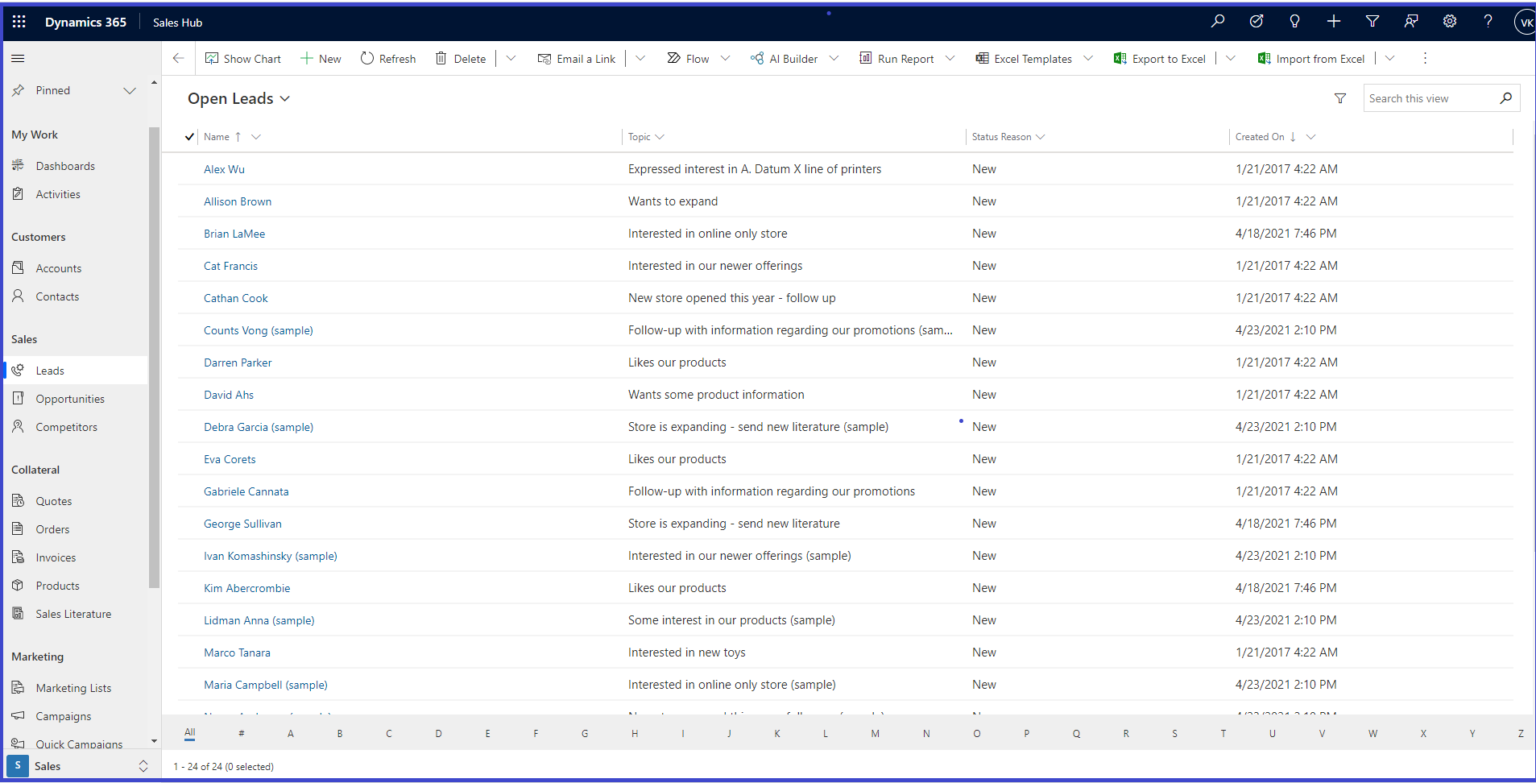
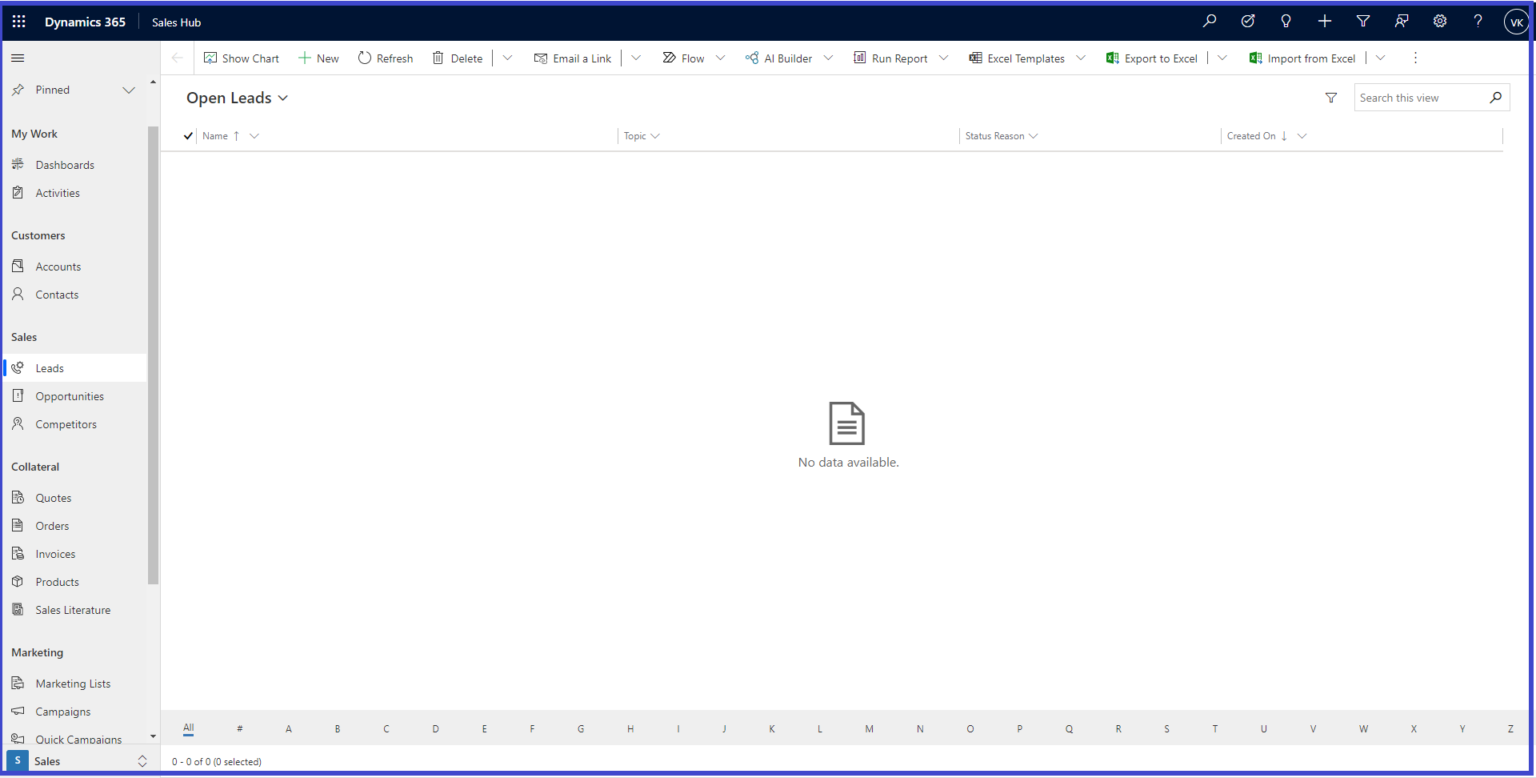
Suppose we want to qualify all the open leads on daily basis so we will use a scheduled flow which will run daily at 6 pm to change the status of leads from “New” to “Qualified”.
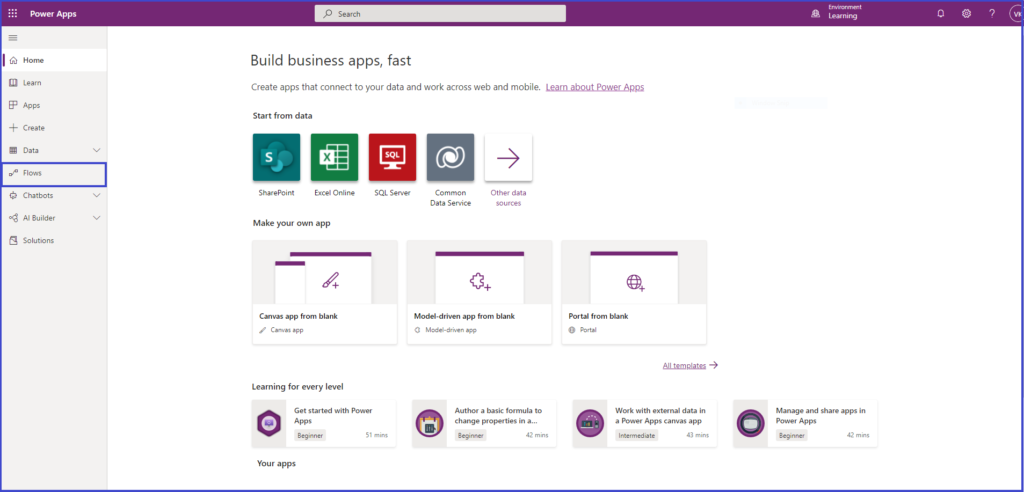
2. Click on New Flow and select Scheduled cloud flow.
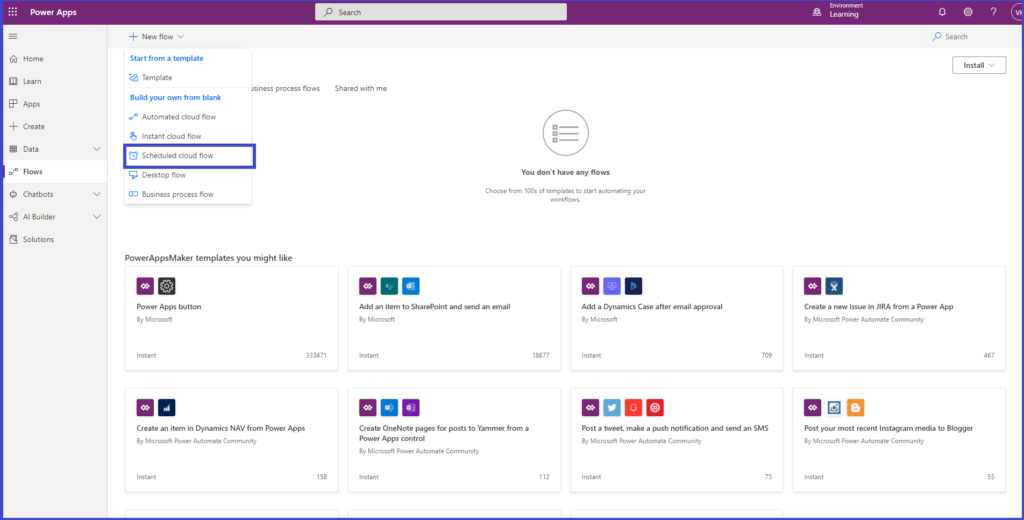
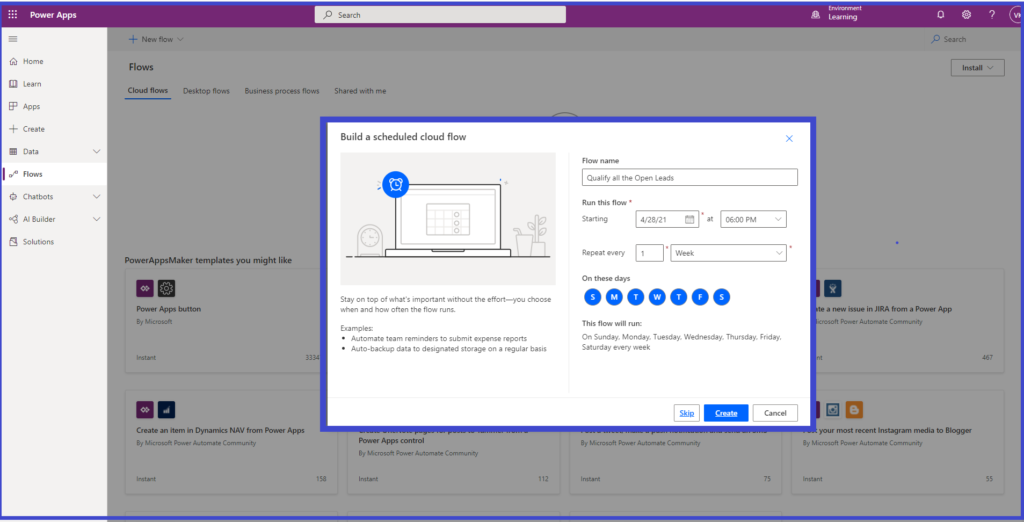
3. Enter the name and frequency of the scheduled flow and click on Create.
4. Click on New Step and choose Microsoft Dataverse as Connector.
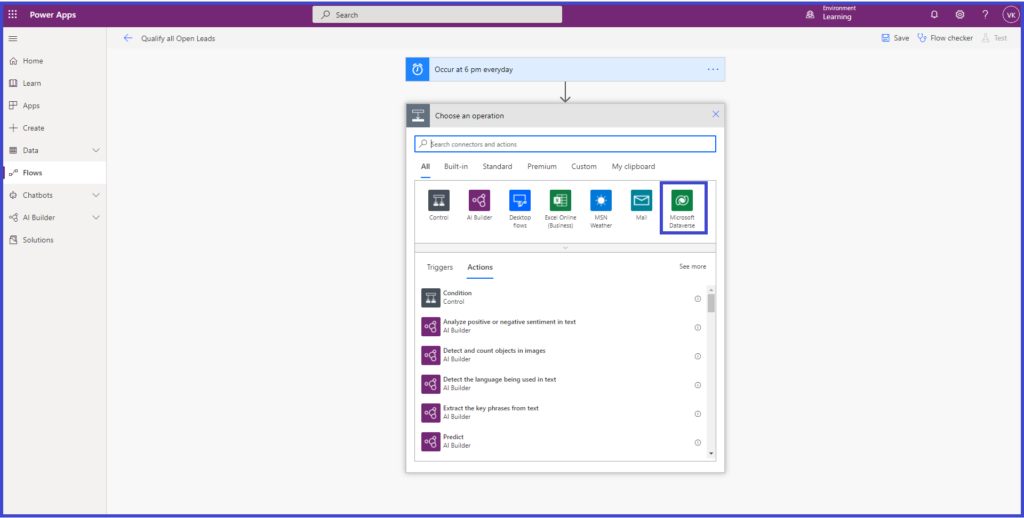
5. Select List Rows and add entity name and filtering condition.
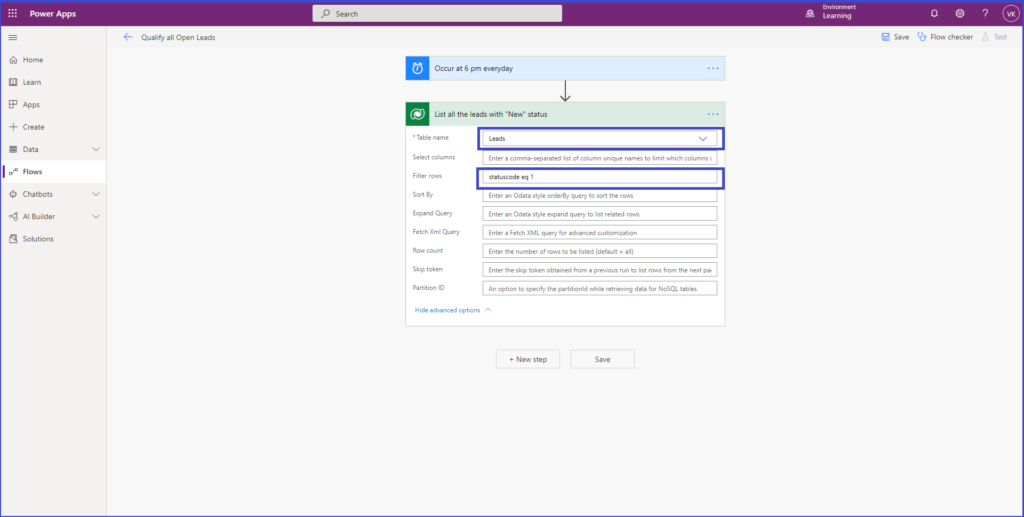
6. Add a New Step and select action as Update a row.
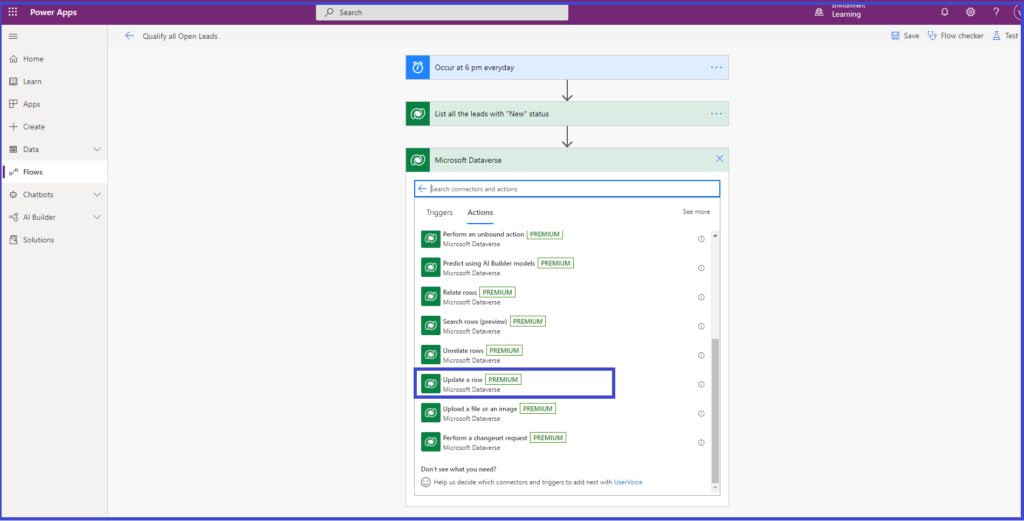
7. Enter the entity details and the status value you want to update.
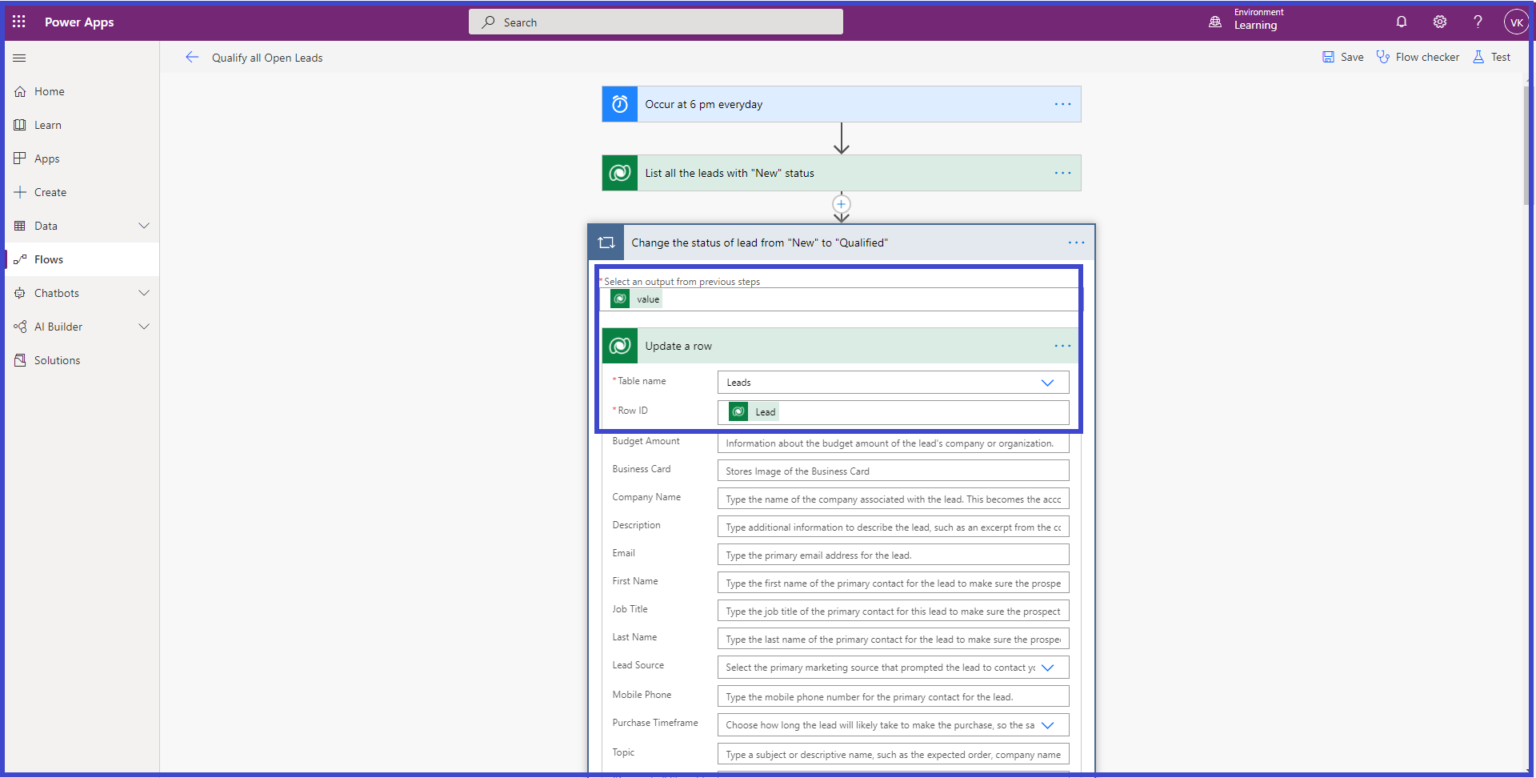
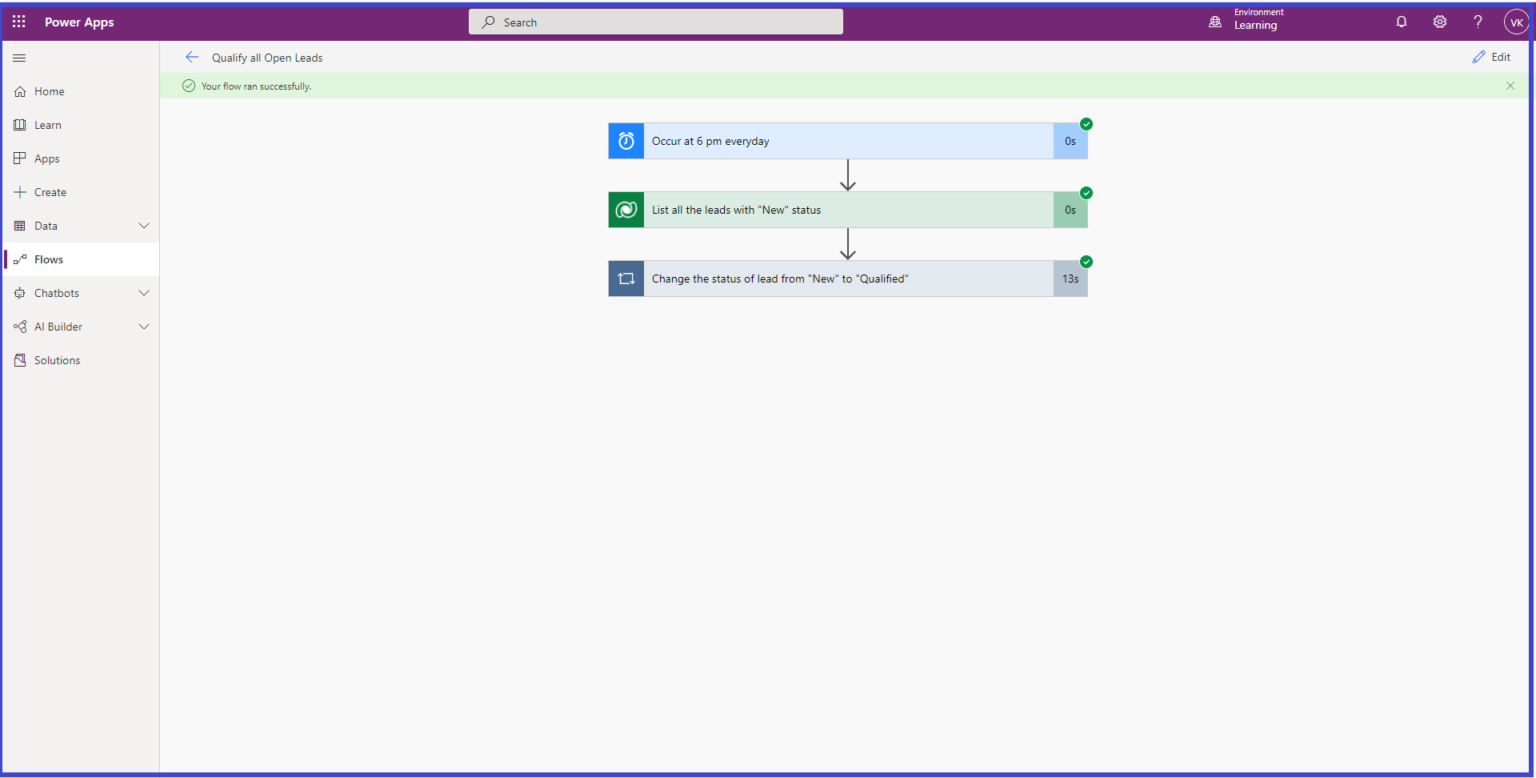
8. Save and test the flow.
For more info :
https://docs.microsoft.com/en-us/power-automate/run-scheduled-tasks
Comment

Power Pages Server Logic allows developers to execute secure backend JavaScript directly within Power Pages. It is commonly used for…
READ MORE
In this blog, we’ll build and deploy a Single Page Application (SPA) using React + Vite and host it on…
READ MORE
Introduction In Dynamics 365, subgrids are commonly used to display related records, such as Opportunities under an Account. While out-of-the-box…
READ MORE