knowledgecenter-breadcrum

Knowledge Center

25 Feb, 2026

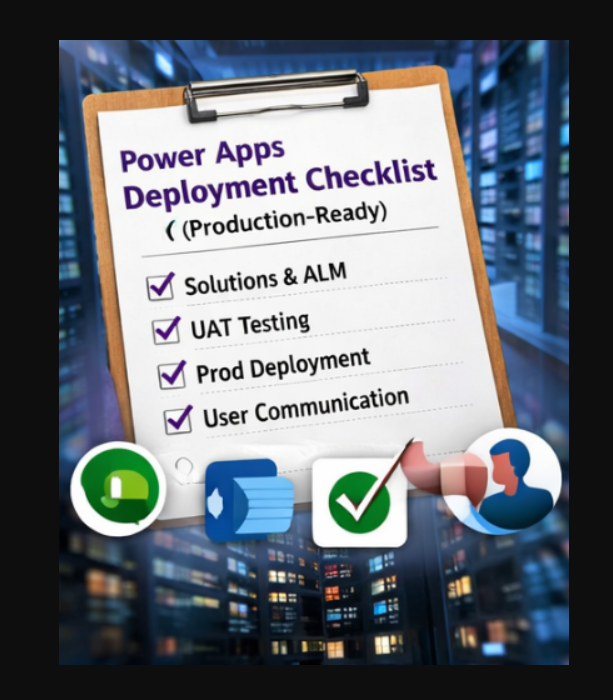
Power Apps Production Deployment Checklist: Best Practices for a Smooth Go-Live

Posted on 25 Feb, 2026 by Dadasaheb Deole, Posted in Microsoft 365 Microsoft Power Platform Power Pages PowerApps Portal PCF (PowerApps Component Framework) Power Automate
Blogs

Introduction
In Power Apps, even a small mistake during deployment can impact users and business processes. This checklist will help you standardize deployments, reduce errors, and maintain high quality applications.

Use Case
An organization uses Microsoft Dataverse with Power Apps across multiple environments. By following a structured deployment checklist, they avoid data inconsistencies, broken flows, and security issues. This results in smoother releases and improved user trust.

1. Plan the Deployment (Foundation First)

Solutions are non-negotiable. They are the backbone of proper ALM (Application Lifecycle Management).

DO

  • Move all apps, flows, tables, and components into a Solution
  • Use environment variables instead of hard-coded values
  • Use unmanaged solutions in Dev/Test
  • Use managed solutions in Production
  • Maintain semantic versioning (Major.Minor.Build)

AVOID

  • Editing apps directly in Production
  • Hard coding:
    • SharePoint URLs
    • API endpoints
    • Connection references

2. Prepare Environments (Stability & Isolation)

Recommended Environment Strategy

  • Dev → Build & iterate
  • Test / UAT → Validate & approve
  • Prod → Live users

DO

  • Use separate environments per stage
  • Confirm:
    • Dataverse & API capacity
    • Required licenses
    • Security roles
    • DLP (Data Loss Prevention) policies are aligned

AVOID

  • Building or hot fixing in Production
  • Different connectors enabled per environment
  • Deploying without checking Dataverse capacity

Pro tip:
Deployments fail surprisingly often because Prod has less capacity than Test.


3. Validate Data Sources & Connectors

DO

  • Confirm all connectors exist in every environment
  • Validate Dataverse:
    • Table schemas
    • Relationships
    • Column data types

AVOID

  • Assuming connectors auto-recreate
  • Modifying table structures outside a solution

Why this matters:
Connection issues are the #1 cause of broken apps after deployment.


4. Configure Environment Variables (No Hard Coding)

Use Environment Variables for:

  • SharePoint site URLs
  • API endpoints
  • Feature flags

DO

  • Update variables after importing into Test/Prod
  • Verify connector permissions
  • Use clear, consistent naming

AVOID

  • Forgetting to update variables post-import
  • Hard coding values in formulas
  • Vague names (e.g., var1, url2, data123, conn1)

Pro tip:
Treat environment variables like configuration Data, not optional extras.


5. Test Thoroughly (UAT Is Not Optional)

DO

Functional Testing

  • All core user scenarios

Performance Testing

  • Large datasets
  • Delegation warnings

Security Testing

  • User roles
  • Row-level security
  • Sharing behavior
  • Test Power Automate flows with realistic data

AVOID

  • Testing only as admin
  • Ignoring slow screens or warnings
  • Skipping flow trigger validation

UAT Rule:
If a real user didn’t test it, it’s not tested.


6. Deployment Execution (Go Live Safely)

DO

  • Export solution from Test as Managed
  • Import into Production
  • Rebind:
    • Connections
    • Environment variables
  • Validate all Power Automate flows

AVOID

  • Importing unmanaged solutions into Prod
  • Forgetting to reconfigure connections

Pro tip:
Always have a rollback strategy before importing into Production.


7. Communicate the Release (User Trust)

DO

Notify users:

  • What changed
  • When it’s live
  • Why it matters

Provide:

  • Simple usage notes
  • Known limitations
  • Support or issue process

AVOID

  • Silent deployments
  • Overly technical release notes

Remember:
Clear communication builds trust faster than new features.


8. Monitor After Deployment (Reality Check)

DO

Monitor:

  • App analytics (sessions, errors, performance)
  • Power Automate flow failures
  • License usage
  • Gather real user feedback
  • Respond quickly to early issues

AVOID

  • Assuming “no complaints = success”
  • Ignoring flow failure emails

9. Ongoing Security & Maintenance

DO

  • Maintain version history
  • Document major changes
  • Schedule cleanup:
    • Old app versions
    • Unused flows
    • Stale connections
  • Continuously update guidelines as adoption grows

AVOID

  • Technical debt accumulation
  • Undocumented quick fixes
  • Knowledge silos (single-person dependency)

Deployment Sign Off Checklist

App Name:
Version:
Owner:
Deployment Date:

  1. Dependencies reviewed
  2.  Solution packaged
  3. Environment variables configured
  4. Connectors validated
  5. UAT sign off received
  6. Imported to Production
  7. Connections rebound
  8. Users notified
  9. Post-deployment monitoring enabled

Conclusion:
Following a structured deployment checklist ensures Power Apps are deployed safely, reliably, and with minimal risk. This approach boosts user trust, reduces errors, and makes ongoing maintenance easier.

Comment
This is a Required Field

Loading

Recent Updates

PCF Ribbon Button Thumbnail
Blogs
16 Feb, 2026

Launching a PCF Control from a Ribbon Button using Custom Pages in Dynamics 365

Introduction: In Model-driven apps, PCF controls are typically embedded inside forms or views. However, unique business requirements often demand more…

READ MORE
Blogs
20 Jan, 2026

How to Add Dataverse as a Data Source in Power Apps Code Apps

In my previous blog, I explained what Power Apps Code Apps are and how we can build apps using React…

READ MORE
Blogs
12 Jan, 2026

Why Power Apps Component Framework (PCF) Is Becoming a Game-Changer in Power Apps Development

Introduction Power Apps is one of the most widely used platforms for building business applications. As organizations grow, they expect…

READ MORE