
11 Aug, 2026
Posted on 11 Aug, 2026 by Rohit Bhagat, Posted in Dataverse Power Platform
 Blogs
Blogs
Email Templates in Microsoft Dataverse make it easy to reuse email content such as subject lines, message bodies, and dynamic fields. This helps keep email communication consistent and avoids creating the same content repeatedly.
But there's a catch: if an Email Template comes from a managed solution and someone edits it directly, Dataverse keeps the original managed component unchanged and creates an unmanaged layer for the customization. This layer can prevent future updates from the managed solution from appearing as expected.
Now let's walk through the whole thing step by step, starting with creating the template.
Let's start by creating a simple Email Template in our source (Dev) environment, and adding it to a solution.
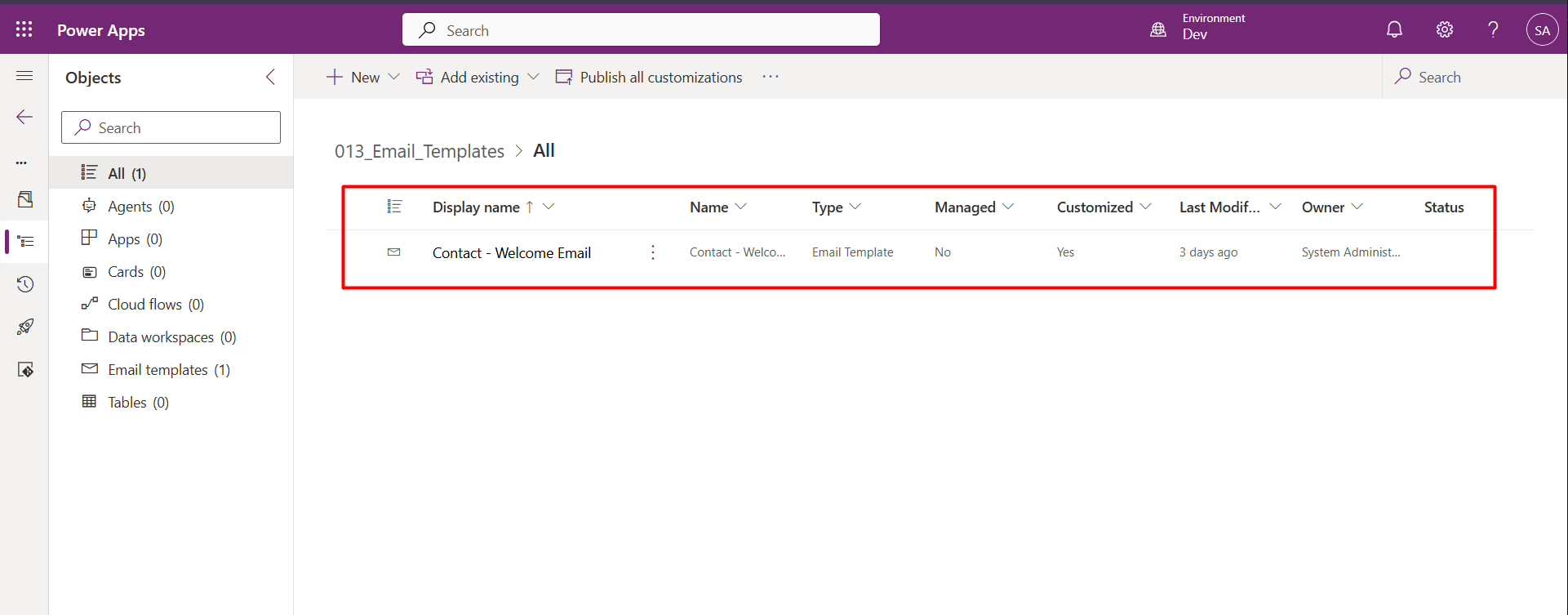
Once the template is ready, export the solution as a managed solution and import it into the target environment.
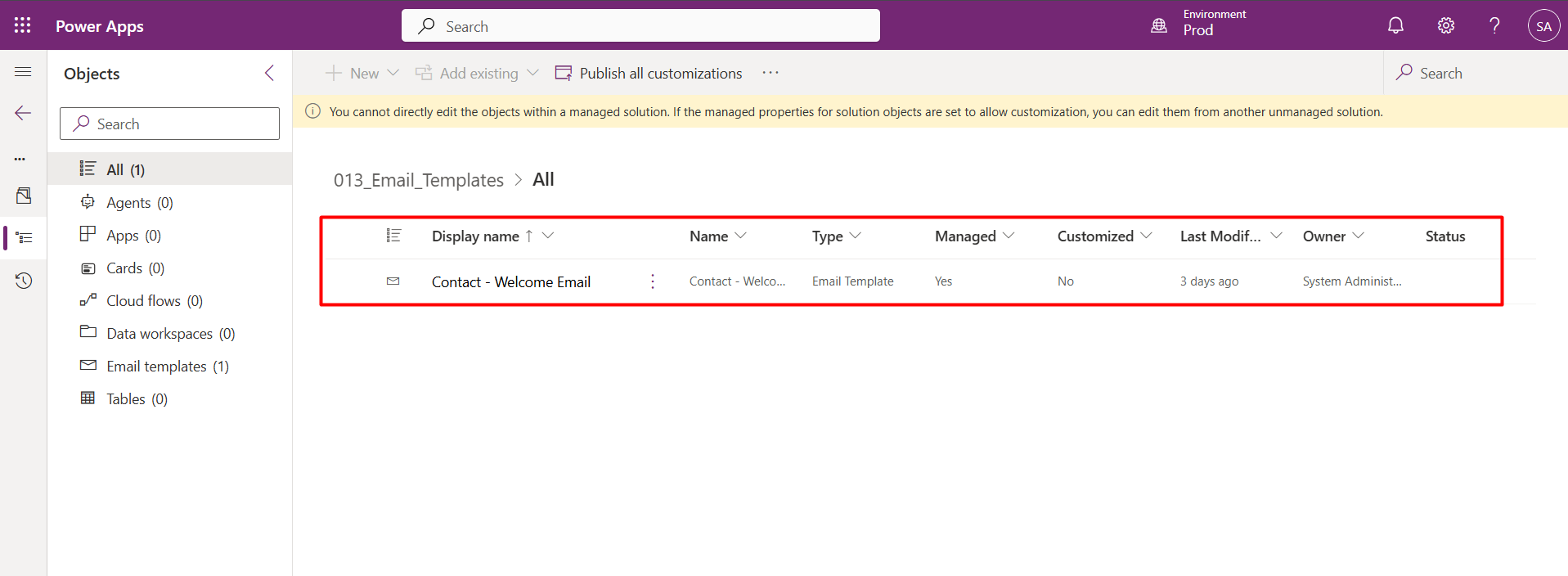
Now, open the same Email Template directly in the target environment and make a small edit — for example, change a line in the email body — then save it.
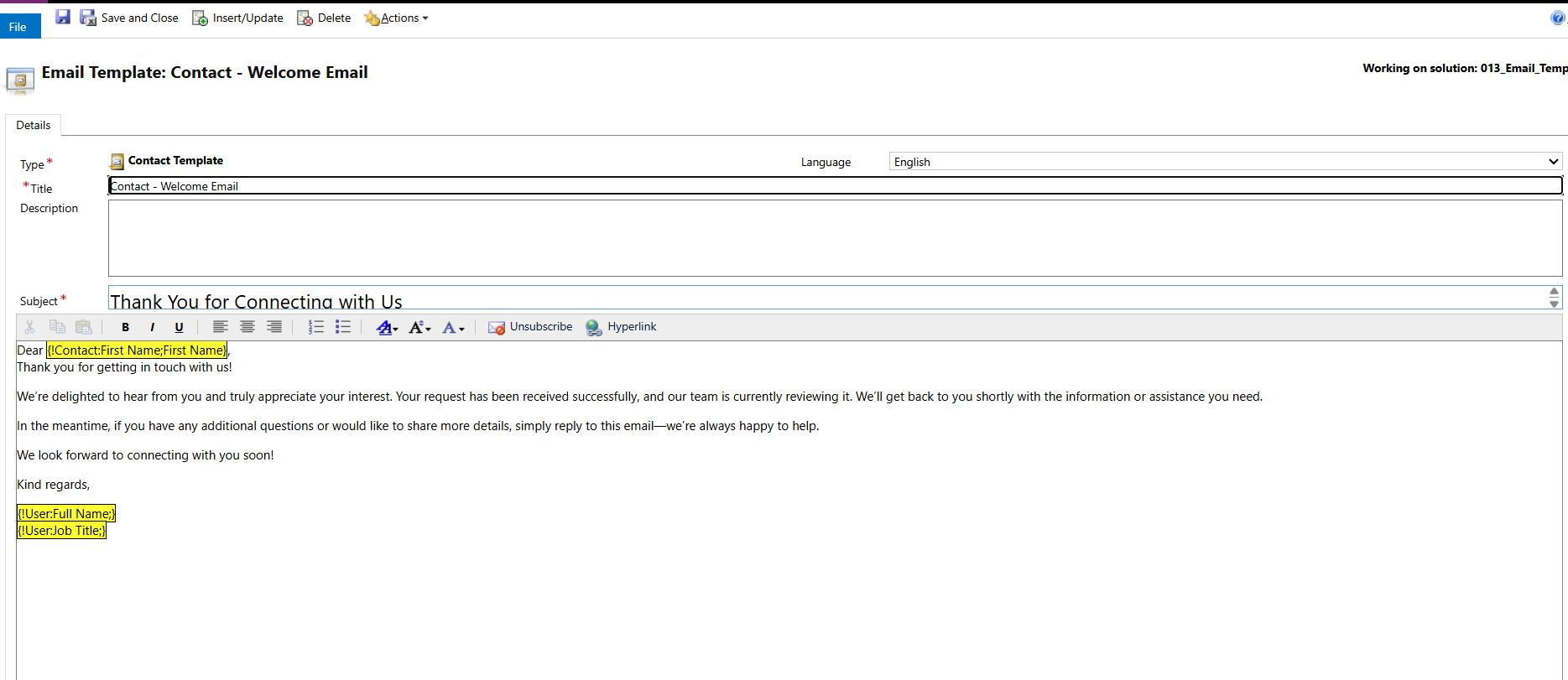
This is the moment the problem starts: editing a managed component directly creates a new unmanaged layer on top of it.
To confirm this, open the Email Template's Solution Layers view. You'll now see two layers: the original managed layer and a new unmanaged layer sitting on top of it.
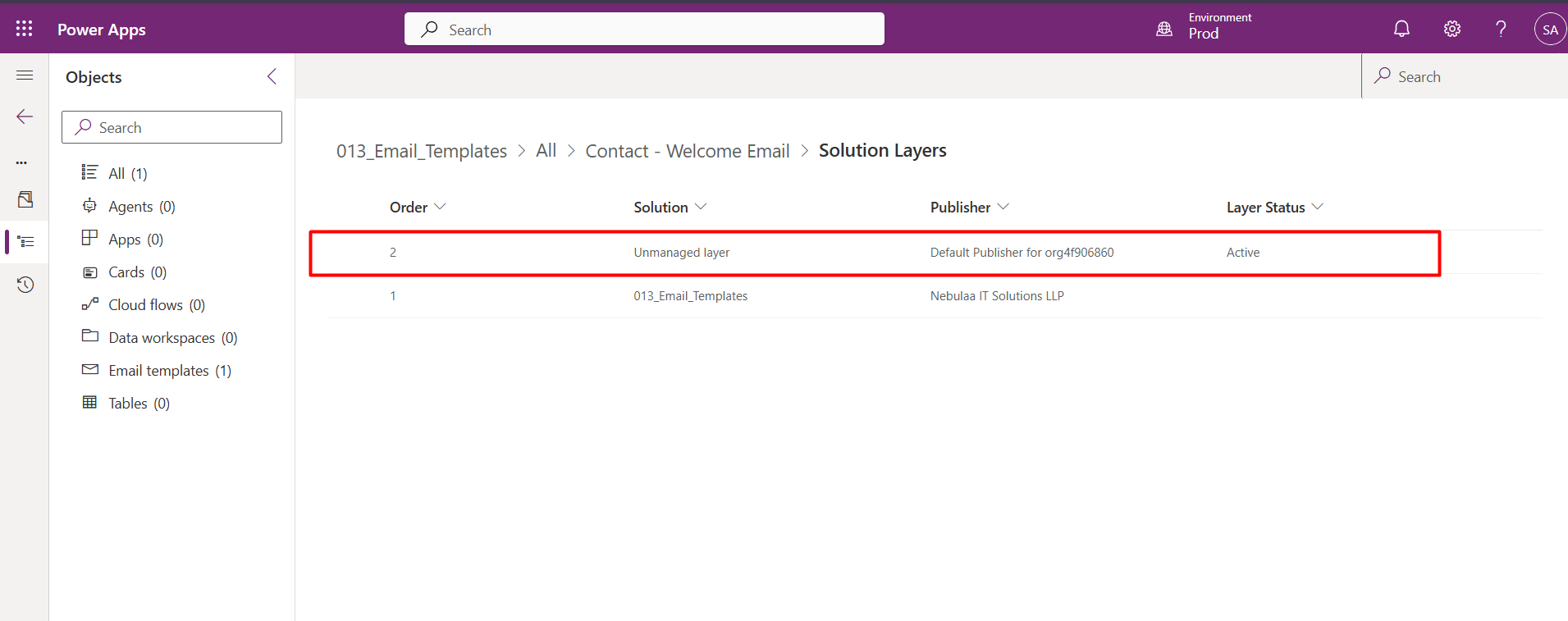
Normally, you'd click Remove Active Customization to remove that top unmanaged layer and bring the managed layer back on top. But if you try this on an Email Template, Dataverse throws an error instead.
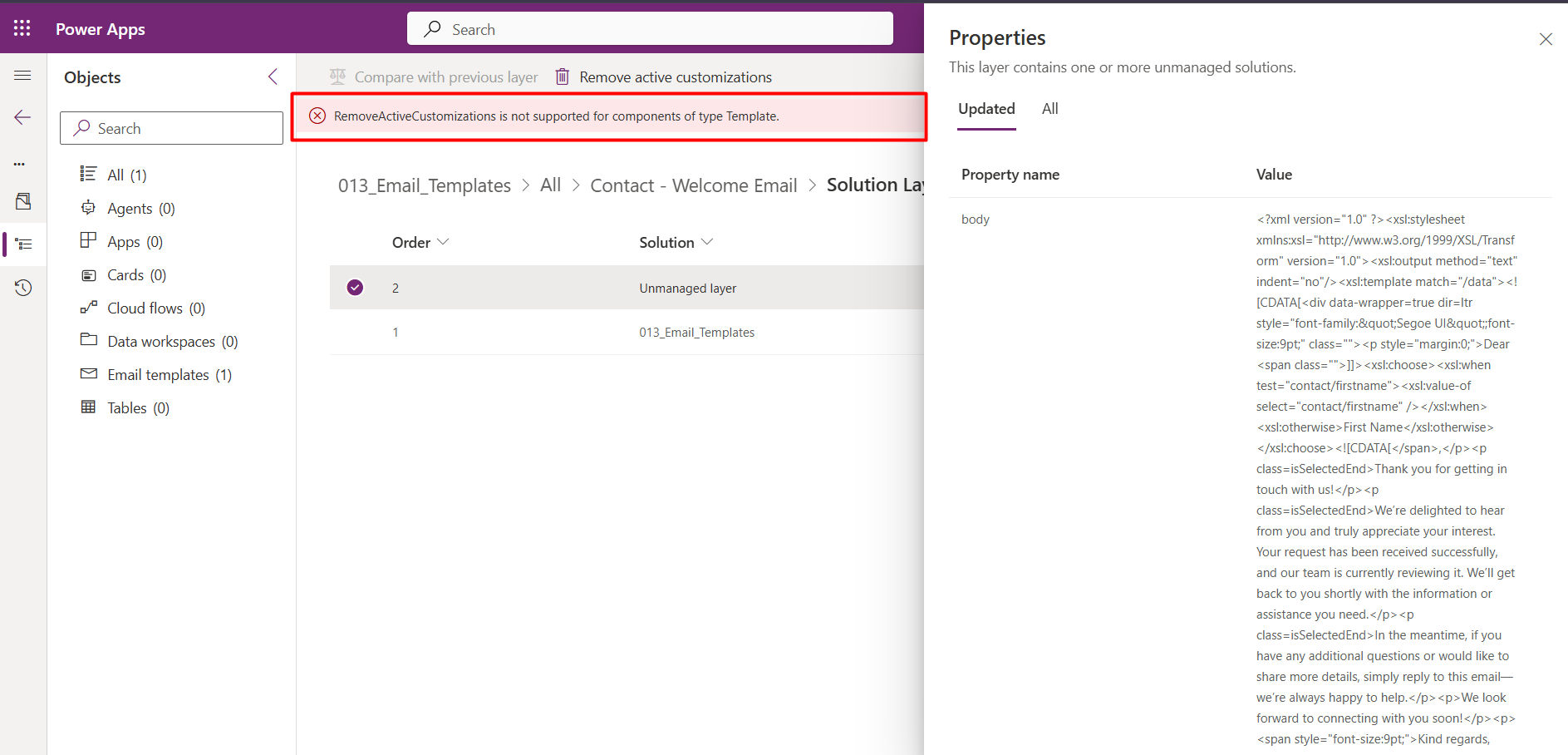
This is the core issue this blog solves. In the next section, we'll walk through how to remove this unmanaged layer without disturbing the managed solution underneath it.
Now that we know the unmanaged layer was created by modifying the Email Template directly, let's remove the customized version and restore the template from the managed solution.
Delete the Email Template from the target environment.
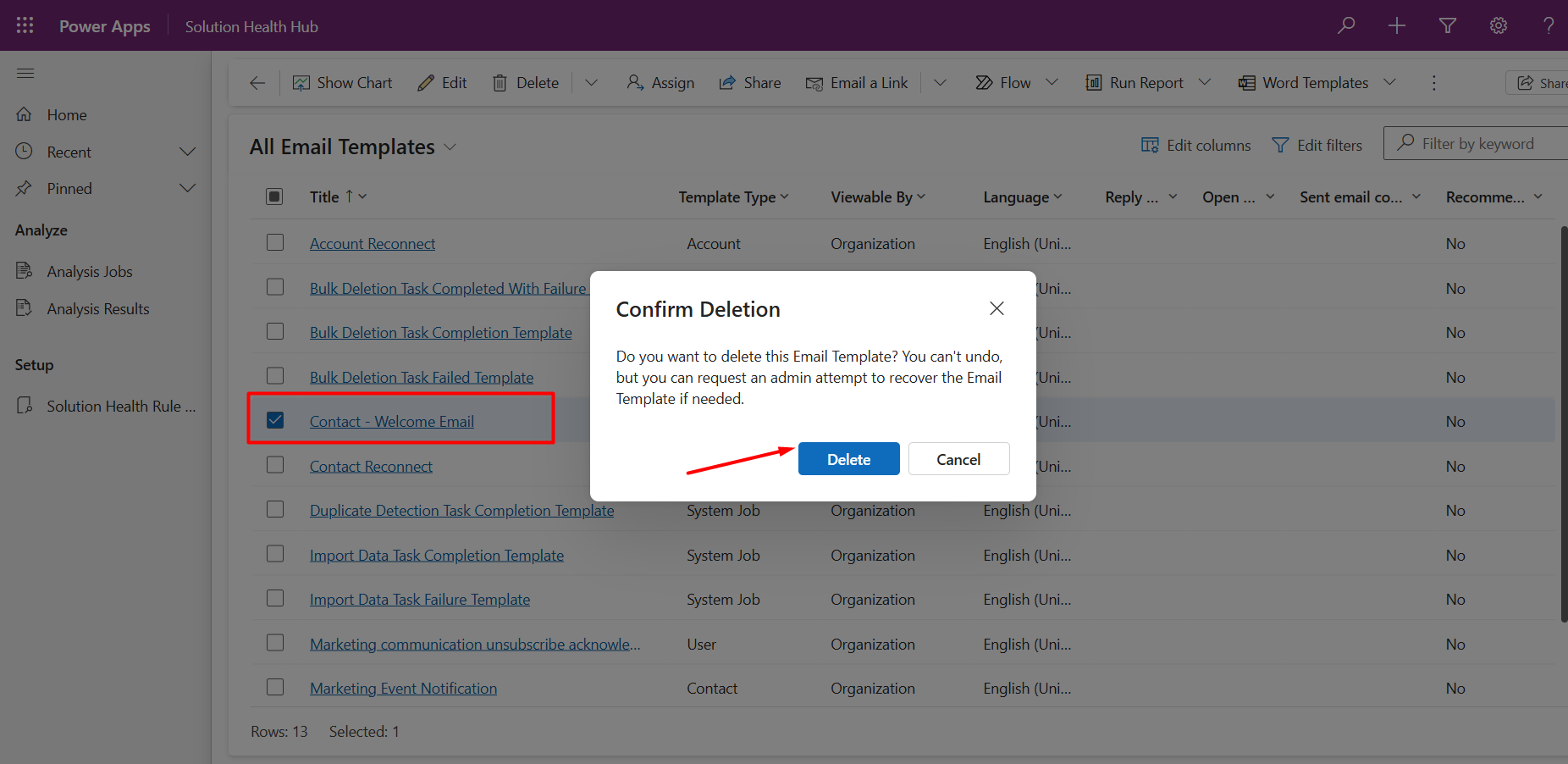
Next, import the same managed solution again. Dataverse will recreate the Email Template from the managed solution, giving you a clean starting point with only the managed layer.
Finally, open the Solution Layers view for the Email Template to confirm the fix. You should now see only the managed layer, with no unmanaged layer on top of it.
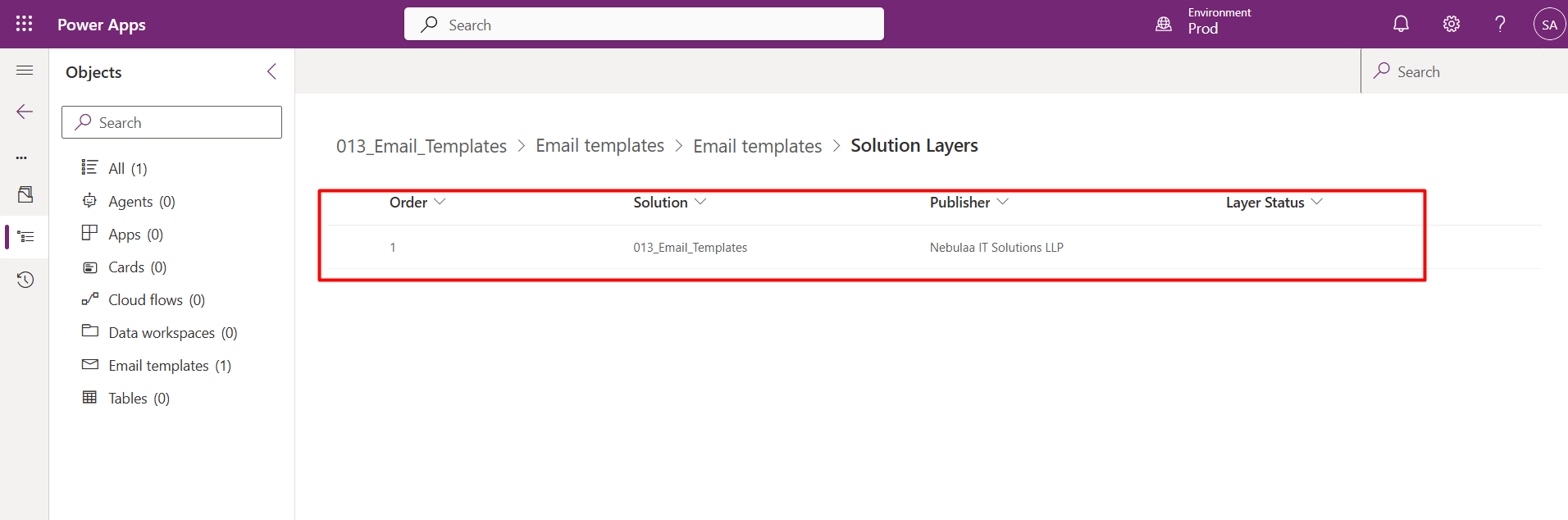
As we saw, Dataverse won't let you remove an unmanaged layer from an Email Template using the usual Remove Active Customization option — it throws an error instead. The fix is to delete the customized template and re-import the managed solution, which brings back a clean, single managed layer with no leftover customizations on top.
Comment
How to Dynamically Switch Business Process Flow When Changing Forms in Dynamics 365 Introduction Microsoft Dynamics 365 provides powerful customization…
READ MORE
How to Create a Flyout Button with Multiple Actions on a Form in Dynamics 365 Introduction In model-driven apps, command…
READ MORE
How to Build Multi-Table Hierarchies in Dynamics 365 Sales Introduction Dynamics 365 Sales has always supported hierarchies, but until…
READ MORE