
17 Mar, 2026
Posted on 17 Mar, 2026 by Bharathi Siripuram, Posted in
 Blogs
Blogs
Introduction:
Global Command Bar in Dynamics 365 (also known as the Global Tab or Mscrm.GlobalTab) is the top-level ribbon that stays visible across all pages in your model-driven app. Adding a custom button there gives users instant, one-click access to key actions.
In this blog, we walk through how to add a custom button to the Global Command Bar step by step, using a new Solution, the Application Ribbon, and Ribbon Workbench inside XrmToolBox.
Pre-requisites:
Step-by-Step Guide:
Step 1: Create a new solution (Start by creating a dedicated Solution to keep your ribbon customizations clean)
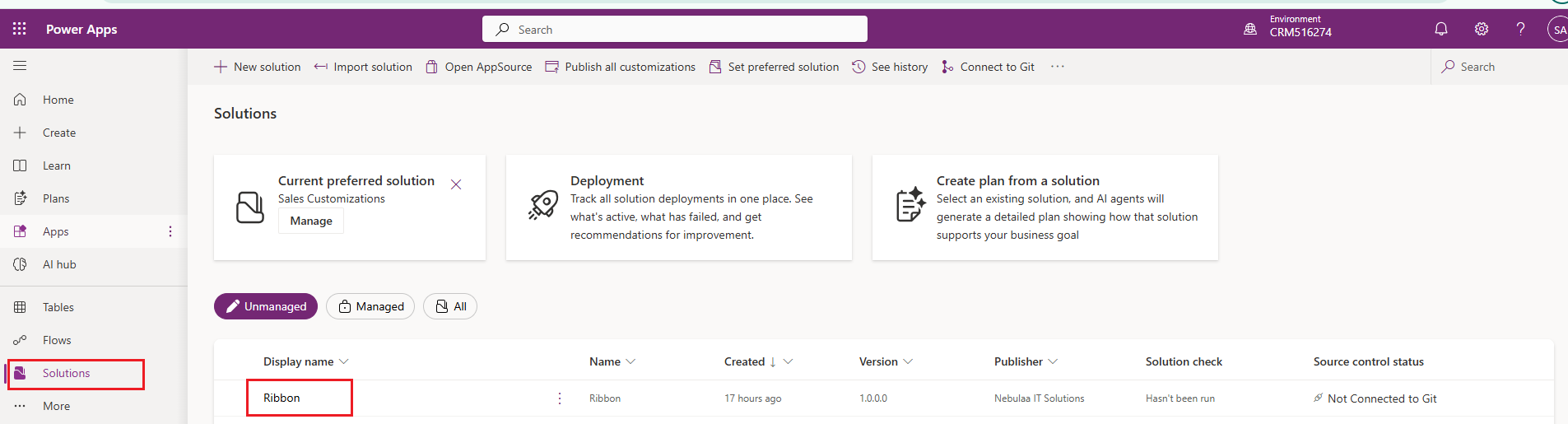
Step 2: Add Application Ribbon to the solution (Application Ribbon is what controls the Global Command Bar (Mscrm.GlobalTab).
Note: Without this step, Ribbon Workbench will not show the Global Tab for customization.
.png)
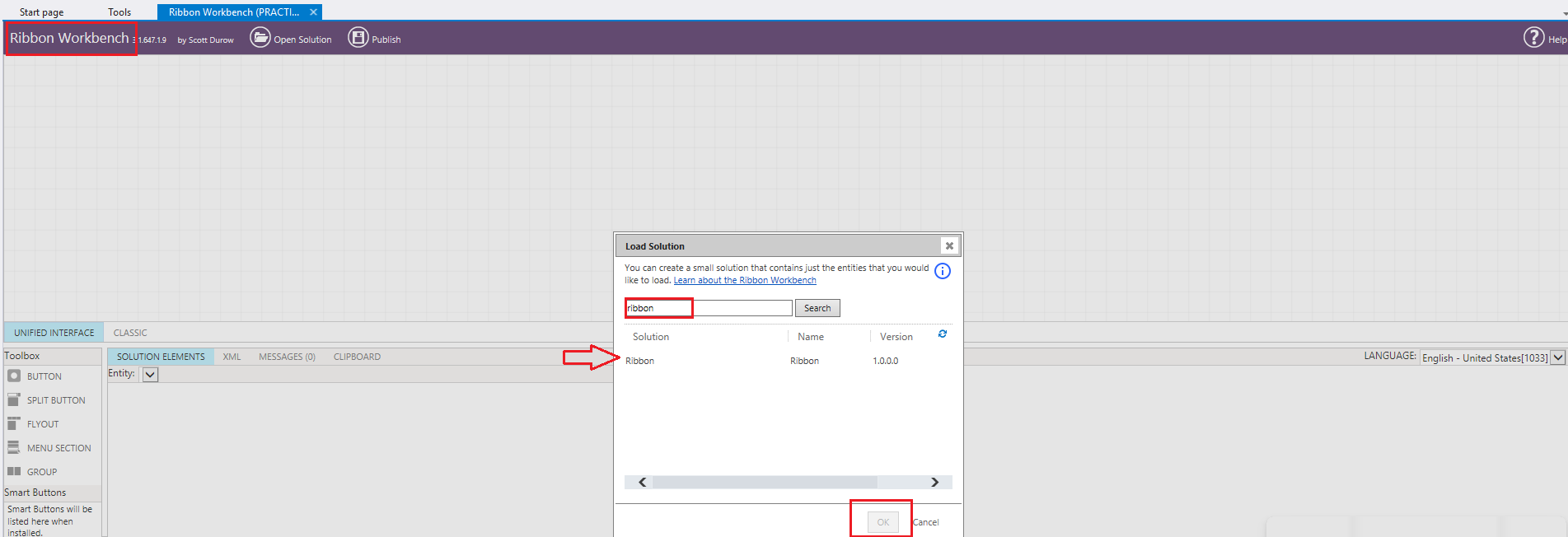
Step 3: Open Ribbon Workbench in XrmToolBox
Step 4: Add a Custom Button to Mscrm.GlobalTab
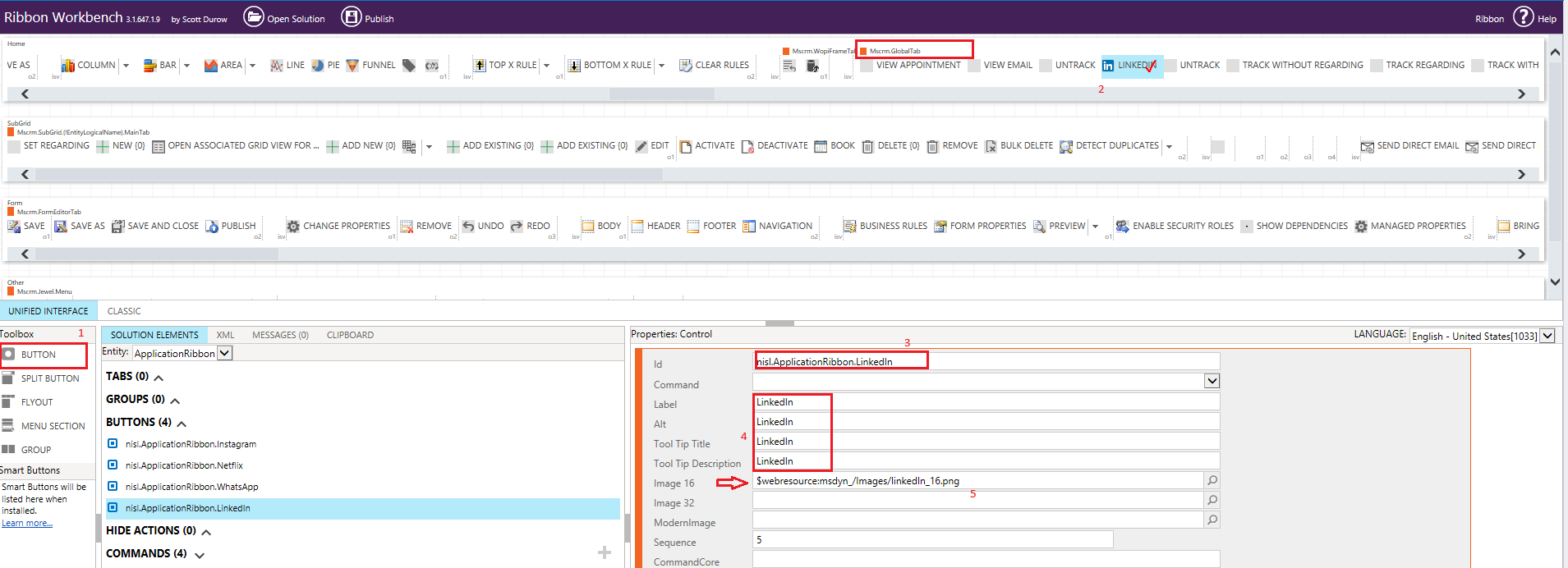
Step 5: Configure Button Properties — Label, Icon, Command & Rules
Once the button is placed on the ribbon, configure its properties from the right-hand panel in Ribbon Workbench.
Set a meaningful label that users will see on the command bar. Keep it short and action-oriented.
You can use a built-in Dynamics 365 web resource icon or upload your own. To upload a custom icon, add a PNG Web Resource to your solution first, then reference it in the button's Image property.
A Command defines what happens when the button is clicked. In the Commands section, create a new Command and link a JavaScript Action or a URL Action to it. For a JavaScript action, reference a web resource and specify the function name.
Note: After creating the Command, go back to your button's properties and select it from the Command dropdown to attach it.
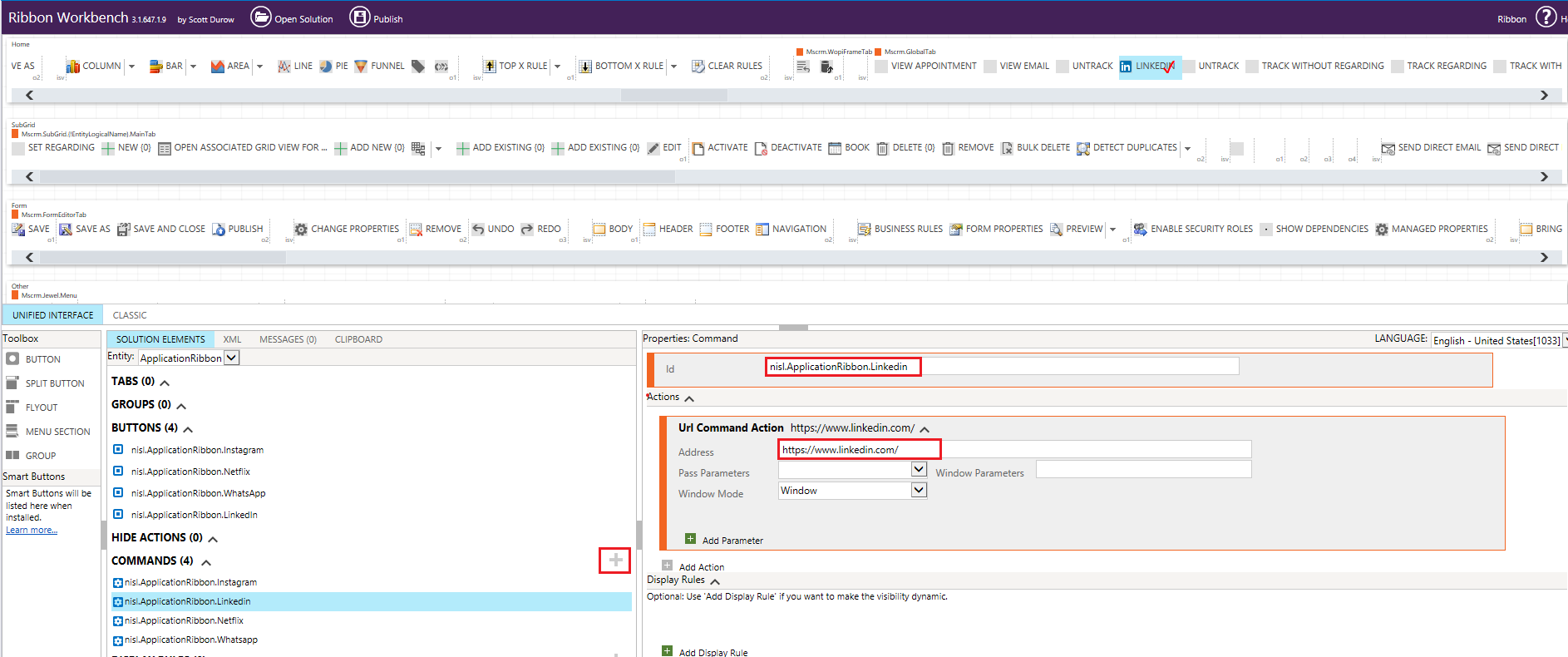
Step 6: Refresh Ribbon XML → Save → Publish
Once all properties are configured and the command is attached, it's time to publish your changes.
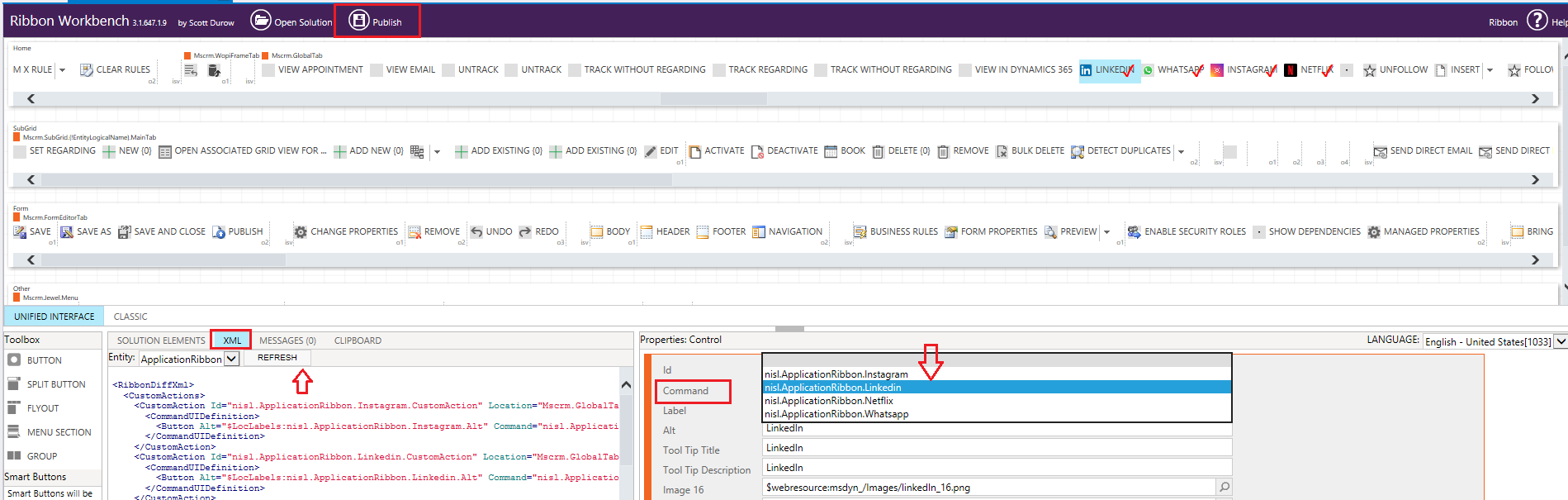
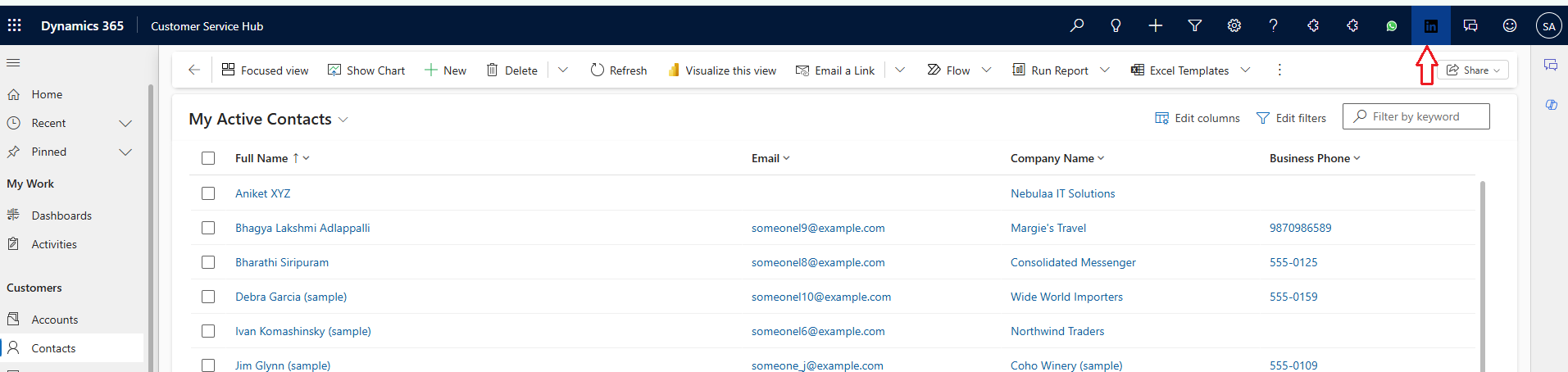
This is how it looks after adding a custom button in the global command bar!
Adding a custom button to the Global Command Bar in Dynamics 365 is a straightforward process once you know the right tools.
By combining a dedicated Solution, the Application Ribbon component, and the visual power of Ribbon Workbench inside XrmToolBox, you can place any custom action - right at the top of every page in Dynamics 365.
Whether it's a genuinely useful productivity button or a fun Netflix experiment, the Global Command Bar is yours to customize.
Comment
Introduction Most teams building Power Automate flows eventually land on the same pattern: wrap your business logic in a Scope,…
READ MORE
Introduction Custom Pages provide a modern way to edit records in Dynamics 365. A common approach is to open a…
READ MORE
How to Dynamically Switch Business Process Flow When Changing Forms in Dynamics 365 Introduction Microsoft Dynamics 365 provides powerful customization…
READ MORE