
16 Oct, 2025
Posted on 16 Oct, 2025 by Vatsal, Posted in Azure DevOps Services
 Blogs
Blogs
Logging bugs in Azure DevOps is an essential part of the software testing and development process. It allows teams to efficiently capture, track, and manage defects identified during testing or production. Azure DevOps provides a centralized platform where testers, developers, and project managers can collaborate to ensure that issues are properly documented, prioritized, and resolved.
In this blog we will see the following points:
What is a bug?
A bug is a mistake or flaw in software that causes it to behave in an unintended or incorrect way OR if the behaviour of a system is not meeting the requirement, then it is also called as a bug.
Below are the ways of logging bug in an Azure DevOps.
1. From Work Items
Find the below steps to log a bug from work items:
Step 1: Open Azure DevOps and Sign in with your credentials.
Step 2: Select the project where you want to log the bug.
Step 3: From the left sitemap, click Boards => Work Items.
Step 4: Click the “+ New Work Item” button and select Bug from the dropdown.

Below is the screenshot which will appear after clicking on “+ New Work Item”.

2. From Test Plans
In Azure DevOps, bugs can also be logged directly from the Test Plans while executing test cases, which makes reporting the defects faster and context specific. Below are the steps to log a bug from test plans:
Step 1: Open Azure DevOps and Sign in with your credentials.
Step 2: Select the project where you want to log the bug.
Step 3: From the left sitemap, Click Test Plans => Select Suit => Select Case in execute tab => Click on “Run for web application”

Step 4: Click on “Create bug” if test case is not working as expected.

Below are the details which must be included in a bug:
When logging a bug in Azure DevOps, the following details must be included to ensure clarity, traceability, and effective resolution:
Please find below screenshot for better understanding:

Lifecycle of a bug:
A bug starts in new state.
It moves to Active when assigned developer starts working on it.
Once fixed, the developer sets it to Resolved.
QA then decides:

Comment
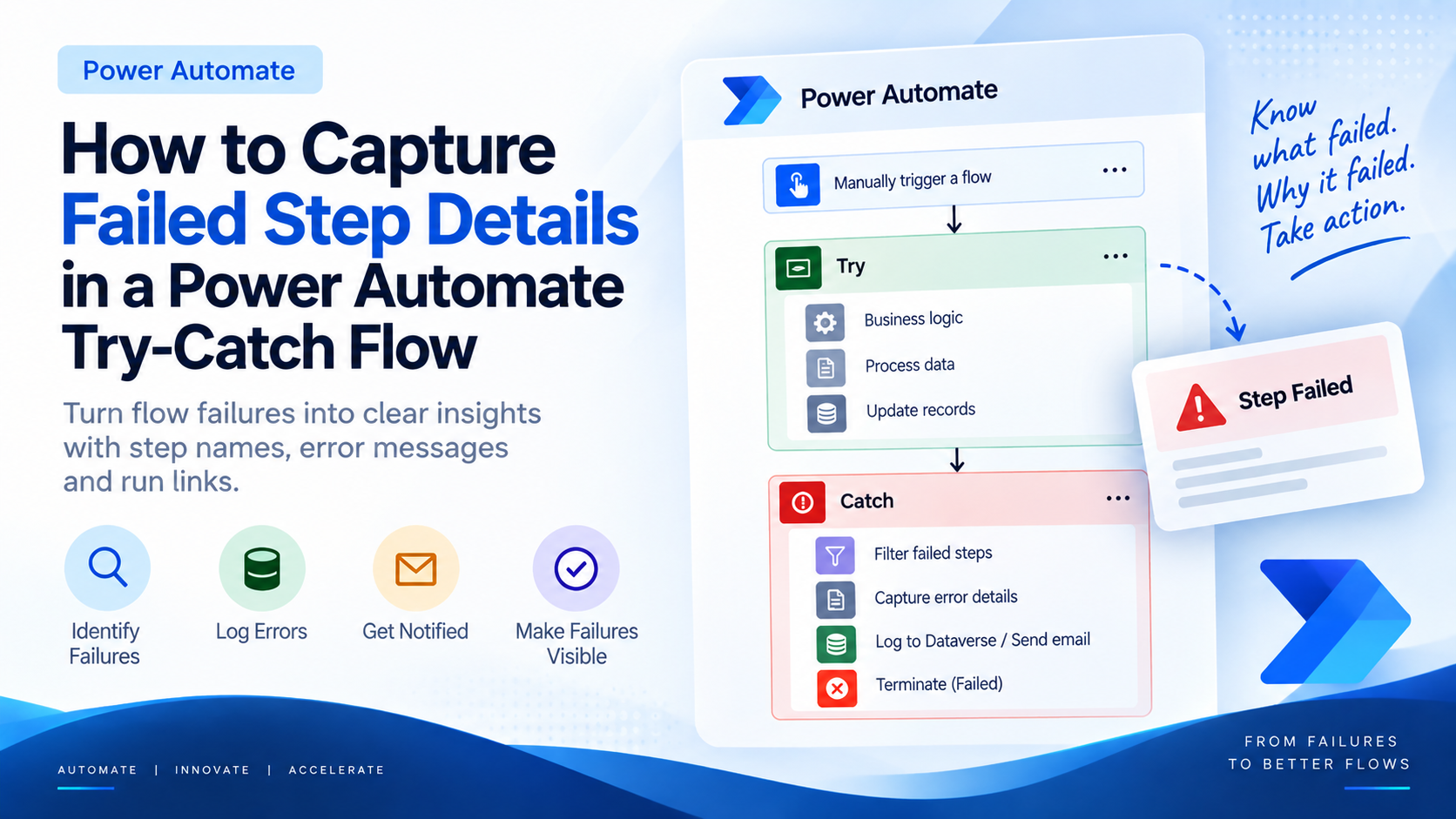
Introduction Most teams building Power Automate flows eventually land on the same pattern: wrap your business logic in a Scope,…
READ MORE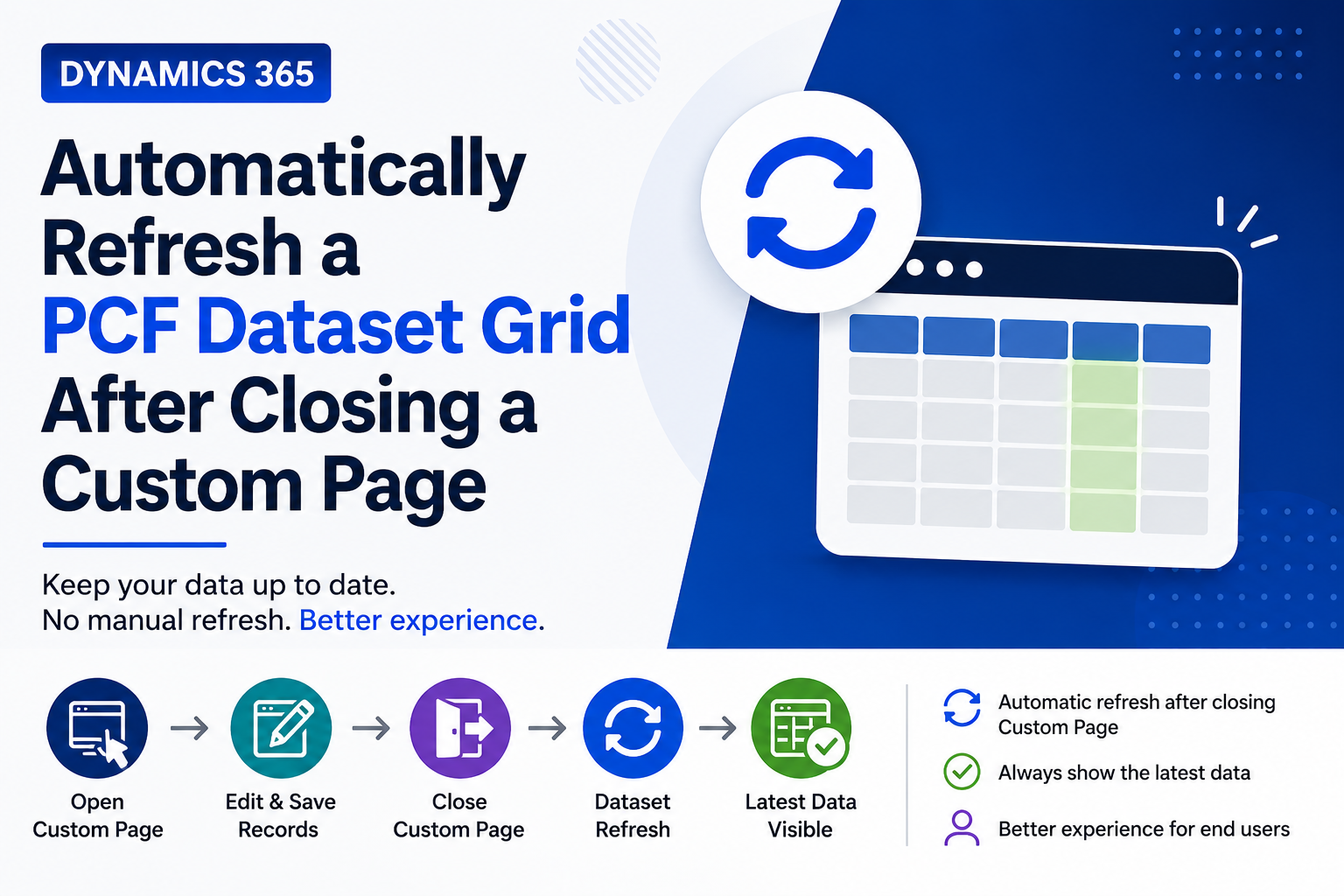
Introduction Custom Pages provide a modern way to edit records in Dynamics 365. A common approach is to open a…
READ MORE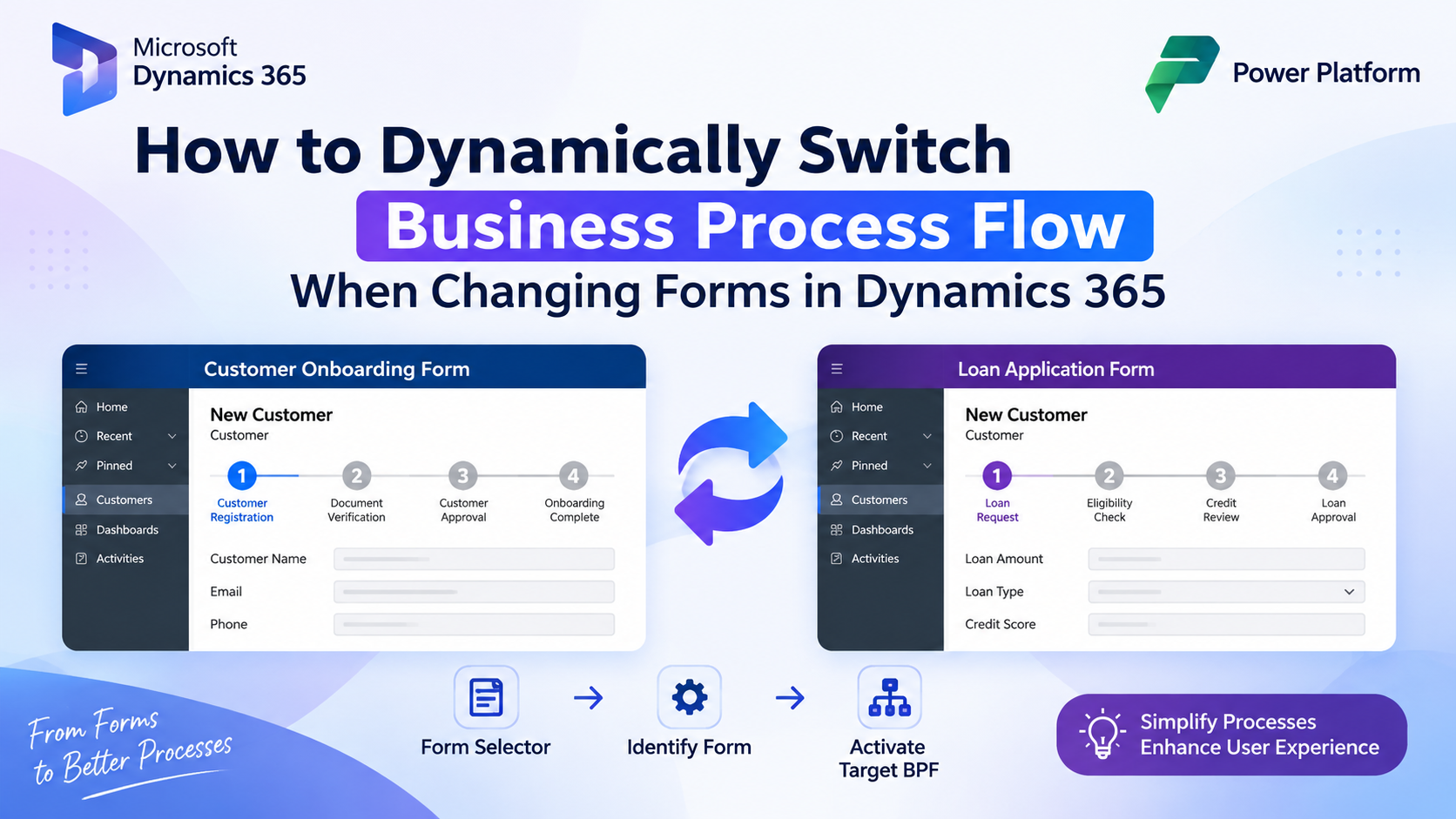
How to Dynamically Switch Business Process Flow When Changing Forms in Dynamics 365 Introduction Microsoft Dynamics 365 provides powerful customization…
READ MORE